
Unlock a selected user’s account and allow them authentication and access resources. The unlock action is often completed when a user is locked out of their account due to frequent login attempts with invalid credentials.
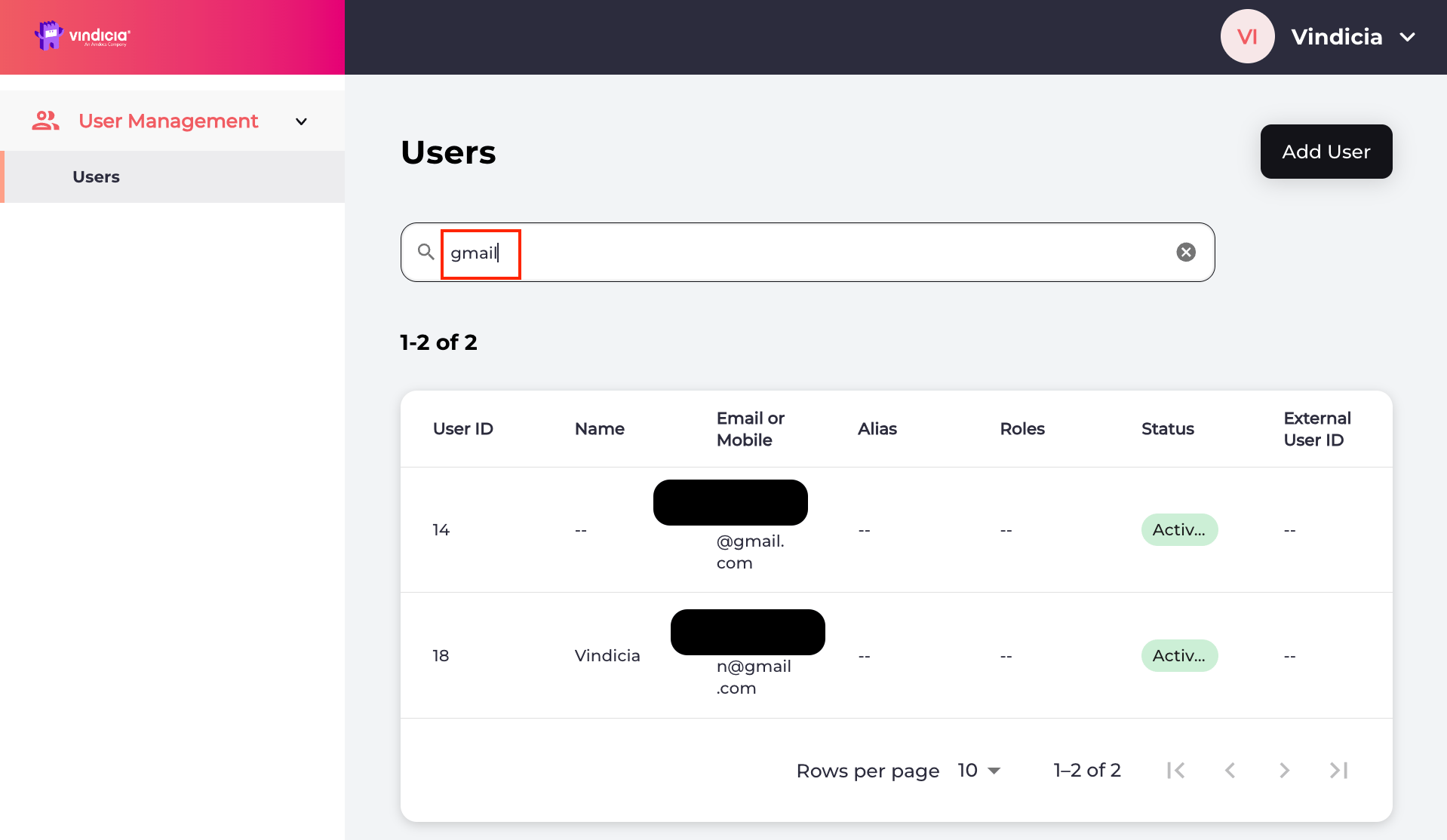
Sign in to Vindicia IDP Console 2.0 by clicking Manage Users Link in the Vindicia Portal under your account avatar. The User Management screen appears. Vindicia IDP 2.0 Console User Management Page listing users
Search for the relevant user or select the user from the list. The selected user’s Identity page opens.
  1. Click Actions > Unlock user from the top-right corner.
  2. Select an option from the Unlock user confirmation prompt:
    • Unlock user unlocks the current user account and allows them to sign in/authenticate and access resources again.
    • Cancel stops the unlock action and returns you to the user’s Identity page.
You have unlocked the user so they can authenticate and access related services. The system updates the user’s status to Activated on the Identity page and Users list. Parent topic:Vindicia IDP 2.0 Console User Management Capabilities