
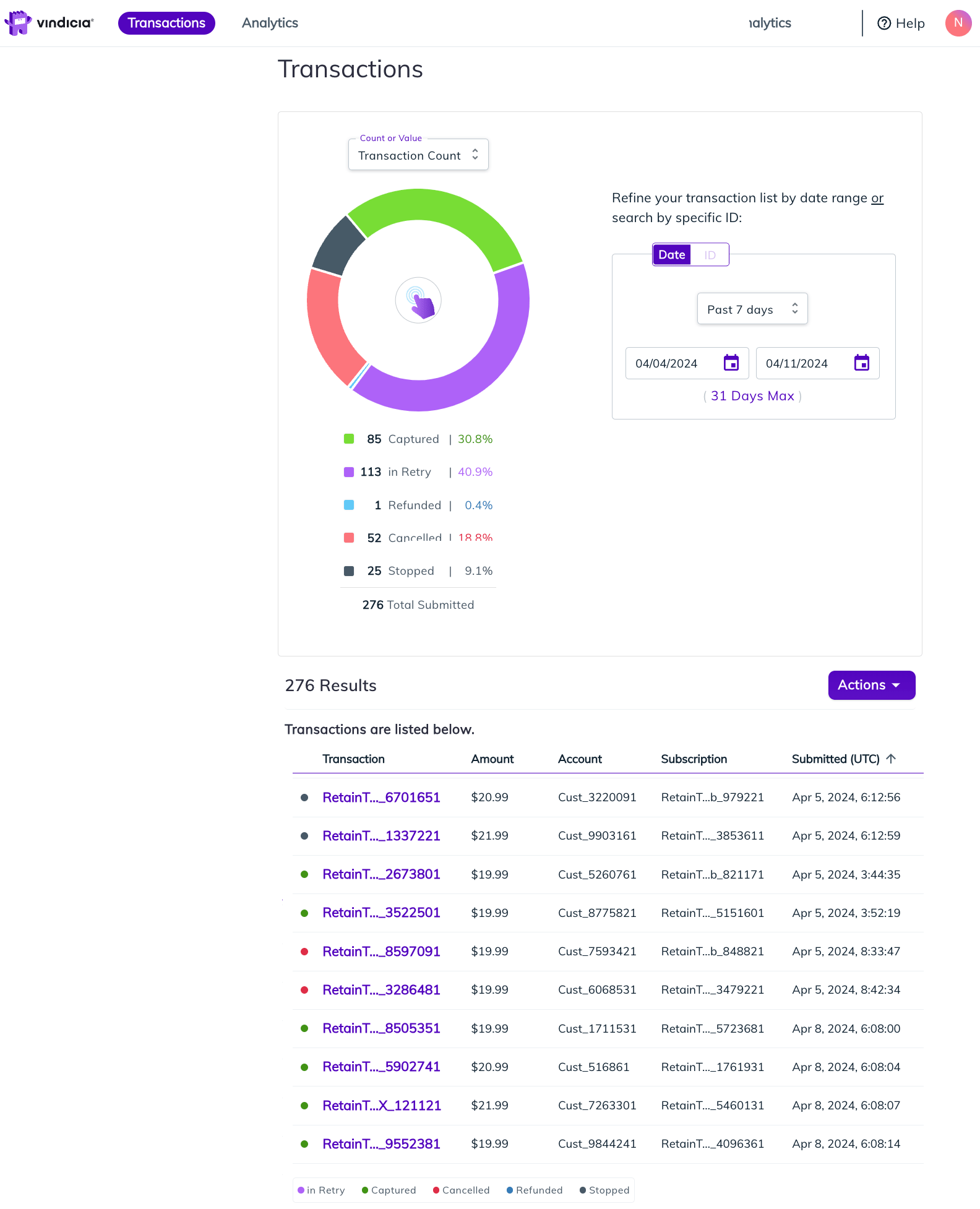
- the number of Transactions broken up by status per search input
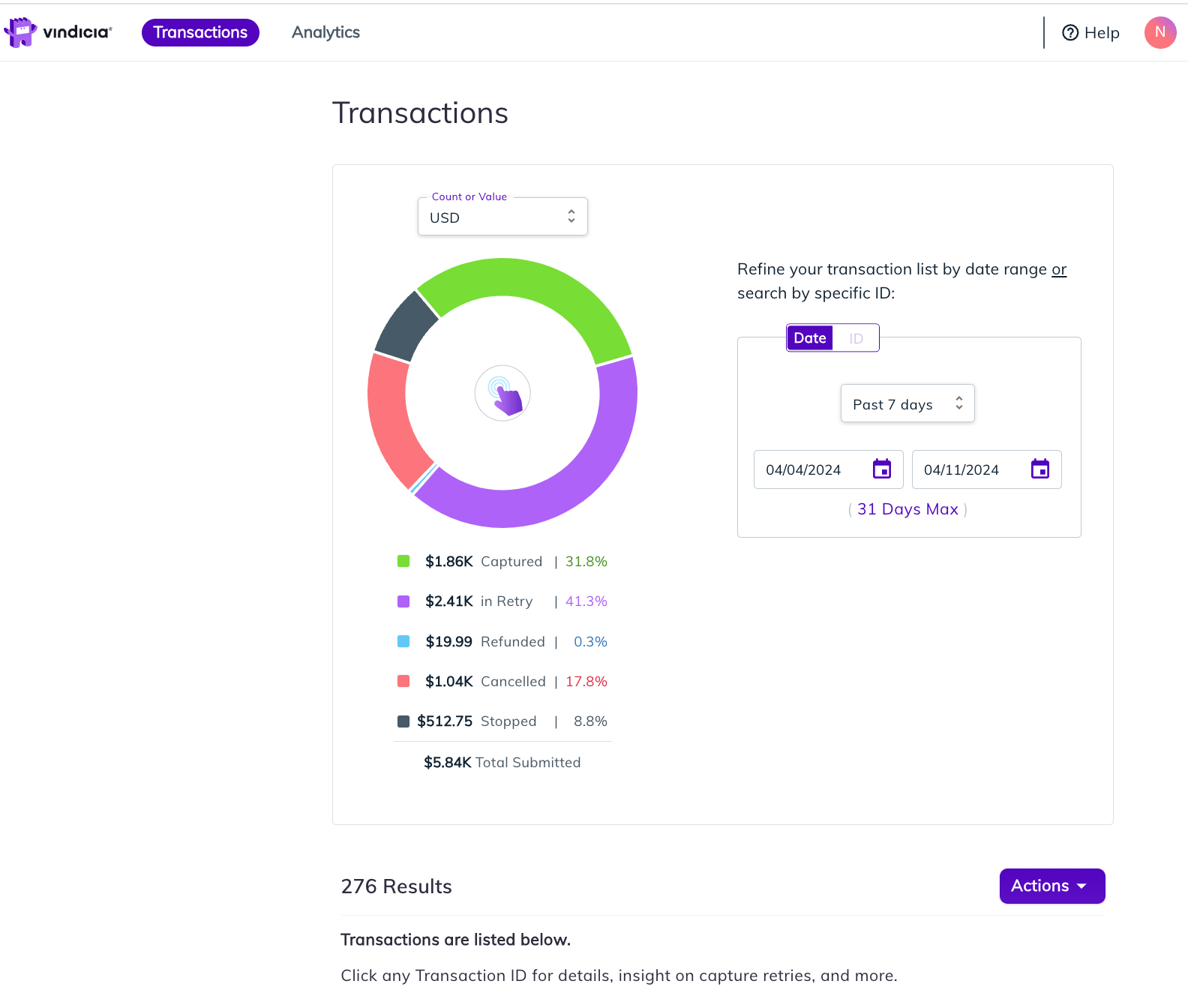
- value of the Transactions (in a supported currency) broken up by status per search input
- Log in to the Vindicia Hub at https://portal.vindicia.com/portal/login
-
To search and view Transactions submitted to Retain, click the Transactions top menu option.
The Retain Hub Transaction search page appears. By default, it shows results for Transactions submitted in the past 7 days.
Tip: Search input is kept, even if browsing to a different page. If you’d like a new search view, clear previous input or refresh page.
-
Search by one of the following:
- Search by date range of the Transaction submission to Retain
- Search by a specific identifier such as Transaction ID or Subscription ID The pie charts changes according to the requested period. Dates are shown based on UTC time zone.
- To search by dates, in the date range fields, select the dates of the Transaction submission date to Retain in the From and To fields. You can use the pre-defined options such as Past 7 days, Past 24 hours, and Past 30 days. Otherwise, select custom dates and enter your required display period. The pie charts changes according to the requested period. Dates are shown based on UTC time zone. The search results list at the bottom of the page is updated with the relevant Transactions. Note: Search supports up to 31-day search period.
- To search by specific identifiers, enter an identifier for the Transaction, Subscription ID, or (customer) Account ID fields. Only one search field can be used per search query. The pie charts changes according to the requested input. The search results list at the bottom of the page is updated with the relevant Transactions.
-
Filter the results further using the drop-down option to see the Transaction count for the Transactions you searched or see the Transaction value by a specific currency you support.
The pie chart display changes according to the requested view and the result list changes accordingly.
Note: Filtering Transactions by a specific currency shows the value of Transactions in that currency. Only Transactions submitted in the selected currency are displayed in both the pie chart and the result list.
- To view all the Transactions in a specific status, click the relevant status in the pie chart. The search result list changes according to the requested status. Note: To clear, click the same status.
- To find a specific Transaction in the results list, scroll through the search result list to see all the relevant Transactions. Transactions are displayed by submitted date in UTC Time Zone. You can sort by other columns to see those same loaded results by a different order, click the arrow by the column name.
- To view a Transaction, click the relevant Transaction ID. For more details, continue to View Retain Transactions and Retry Details