
- Transaction Submissions: generate a report based on the dates your Transactions were submitted to Retain.
- Latest Events: generate a report of Transactions for which events or activity occurred in the desired date range.
- a report of Transactions in a certain currency.
- a report of Transactions in a specific status.
- a report of Transactions with a specified number of retry attempts.
- a report of Transactions included in a specific subscription.
- a report of Transactions purchased by a specific customer account.
- a report of Transactions that were successfully captured by force deposit
Generate Retain Transactions Report
To Generate a One-Time Report
To generate a one-time Retain Transactions report, do the following:- Go to Analytics > Generate Reports The Reports list appears.
-
Find the Retain Transactions row and click Generate.
Retain Transactions panel appears.
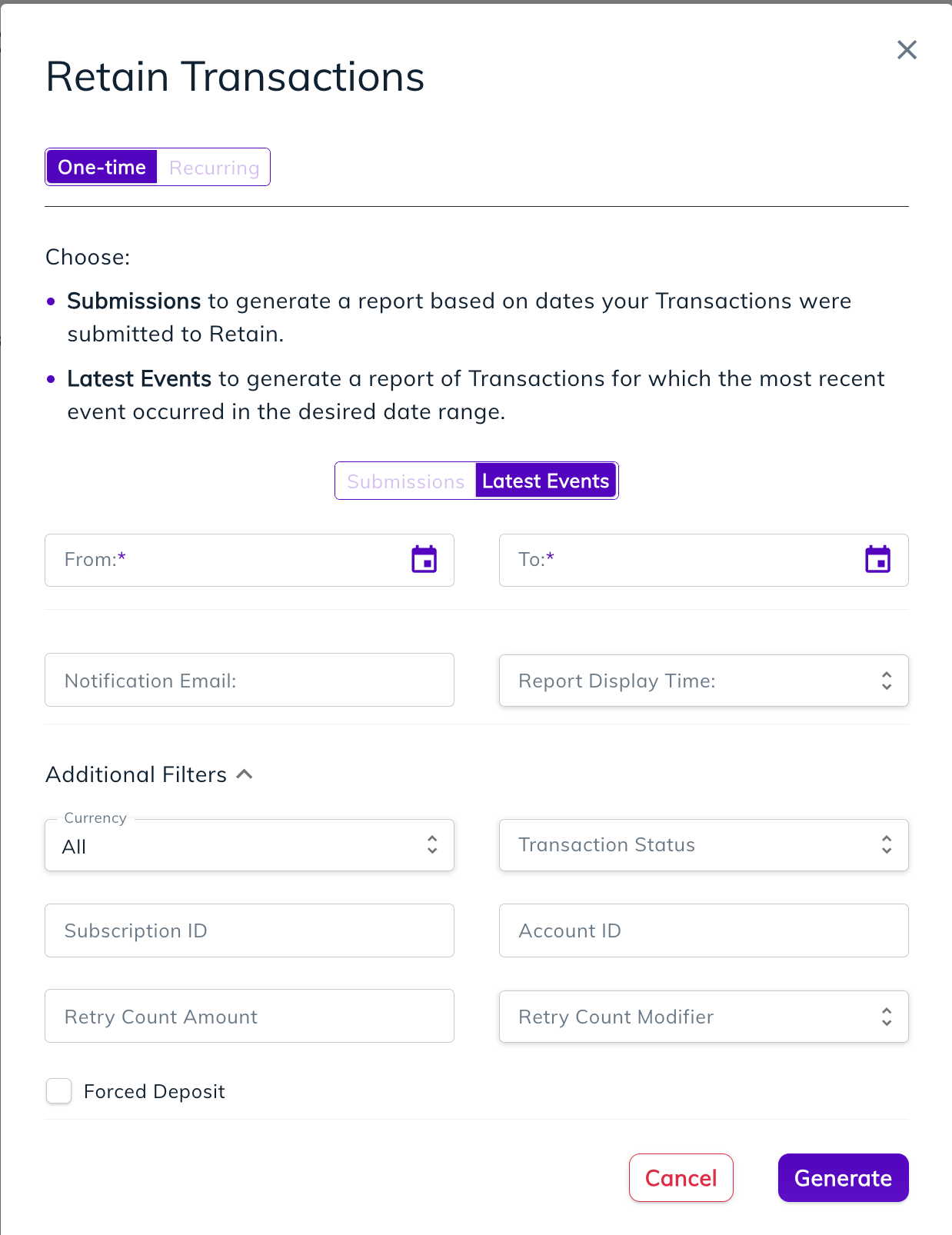
- Select One-Time in the top toggle.
-
Choose whether to generate a Transaction Submissions report or a Latest Events report. This defines which Transactions will be included in the report:
- Submissions: the report lists Transactions submitted to Retain in the defined date range
- Latest Events: the report lists Transactions for which events or activity occurred in the defined date range
- Enter the desired date range.
- Optional. Enter an Email address where you’d like to receive notifications when the report is available. A single email address can be entered.
- Optional. For Report Display Time,select the desired timezone to display from the dropdown list.
-
Optional. Expand and select Additional Filters for the report:
- Currency - Only include Transactions of the specified currency in the report. Only one entry is allowed.
- Transaction Status - Only include Transactions in a specific Transaction Status in the report. Only one entry is allowed.
- Subscription ID - Only include Transactions belonging to a specific subscription in the report. Only one entry is allowed.
- Account ID - Only include Transactions belonging to a specific customer in the report. Only one entry is allowed.
- Retry Count Amount - Only include Transactions at the desired retry attempts count (based on count and modifier used) in the report. Only one entry is allowed.
- Retry Count Modifier - A modifier to the Retry Count Amount filter. Users can select Less Than, More Than, or Equals.
- Forced Deposit - Selecting this check box indicates to only include Transactions successfully captured using forced deposit.
- Click Generate.
- Go to the My Reports page to view the reports when available.
To Generate a Recurring Report
To generate a recurring Retain Transactions report, do the following- Go to Analytics > Generate Reports The Reports list appears.
-
Find the Retain Transactions row and click Generate.
Retain Transactions panel appears.
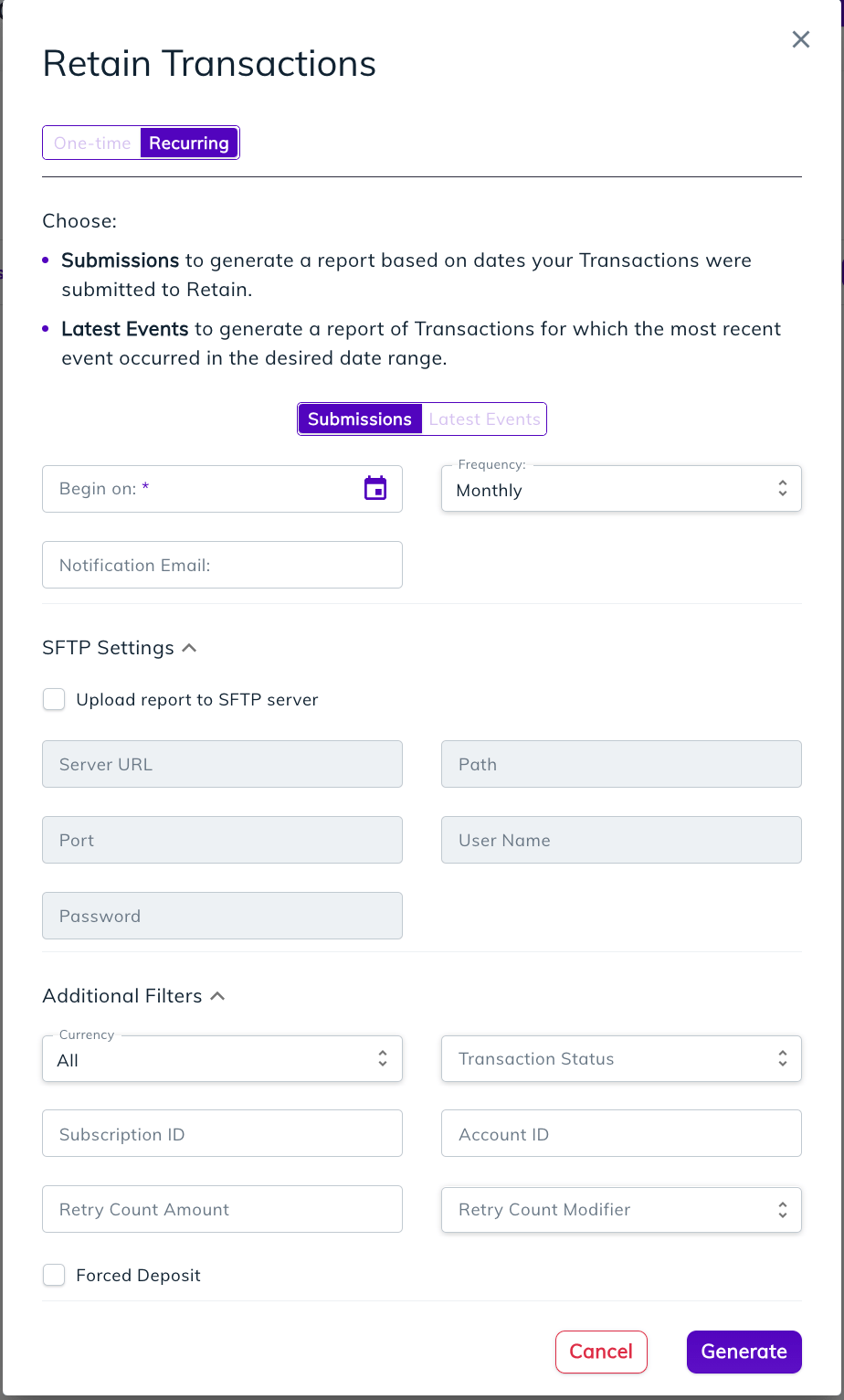
- Select Recurring in the top toggle.
-
Choose whether to generate a Transaction Submissions report or a Latest Events report. This defines which Transactions will be included in the report:
- Submissions: the report lists Transactions submitted to Retain in the defined date range
- Latest Events: the report lists Transactions for which events or activity occurred in the defined date range
- Select the date for the first reporting period.
- Optional. Enter an Email address where you’d like to receive notifications when the report is available. A single email address can be entered.
-
Select one of the following frequencies:
- Daily
- Weekly
- Monthly
- Quarterly
- Optional. If you want to receive the report uploaded to an SFTP Server, expand and enable this option and provide the required details. When enabled, a scheduled report will be uploaded to the specified SFTP Server.
-
Optional. Expand and select Additional Filters for the report:
- Currency - Only include Transactions of the specified currency in the report. Only one entry is allowed.
- Transaction Status - Only include Transactions in a specific Transaction Status in the report. Only one entry is allowed.
- Subscription ID - Only include Transactions belonging to a specific subscription in the report. Only one entry is allowed.
- Account ID - Only include Transactions belonging to a specific customer in the report. Only one entry is allowed.
- Retry Count Amount - Only include Transactions at the desired retry attempts count (based on count and modifier used) in the report. Only one entry is allowed.
- Retry Count Modifier - A modifier to the Retry Count Amount filter. Users can select Less Than, More Than, or Equals.
- Forced Deposit - Selecting this check box indicates to only include Transactions successfully captured using forced deposit.
- Click Generate.
- Go to the My Reports page to view the reports when available.
Retain Transactions Report Output and Display Columns
The report is provided as a CSV file using the following naming format:- report name - The name of the report. In this case retain_transactions.
- report flavor - indicates how the date range was applied. Either to Transaction submission dates or Transactions with activity occcuring (named event) during the defined dates.
- report frequency - This defines whether it is a one-time report (appears as once) or recurring report (appears as the frequency of the recurring report such as daily, weekly, or monthly).
- date - The date the report was generated appears as MM-DD-YYYY, for example 05-23-2024.
Retain Transactions Report Display Columns
Parent topic:Retain Transactions Report