
Transaction Statuses
Retain Transactions can appear in one of the following statuses as shown in the Flow diagram and list of statuses: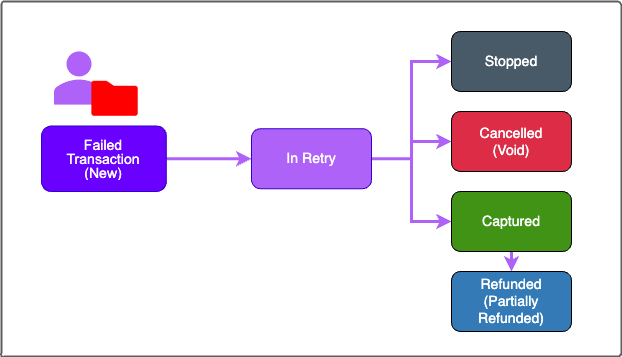
- Failed: This status is allocated to new Transactions when they’re submitted to Retain. This status is temporary, Transactions will move to In Retry as Retain starts to process the submitted failed Transaction and attempts to retry capture. Failed status appears in Retain Hub as purple color.
- in Retry (Authorized): This status is applied to the Transaction while Retain attempts to capture it by utilizing Retain’s many capture mechanisms. This status is temporary and a Transaction can move to several other statuses. In Retry status appears in Retain Hub as purple color.
- Stopped: A submitted Transaction that was in Retry status and merchant has asked to stop capture attempts. This is a terminal status. Stopped status appears in Retain Hub as gray color.
- Cancelled (and Void): A submitted Transaction, for which Retain’s defined retry period and attempts were exhausted. No further retry attempts for the submitted Transaction will be attempted. This is a terminal status. Cancelled status appears in Retain Hub as red color.
- Captured: The failed Transaction has been successfully recovered. This is a terminal status though a captured Transaction can also be Refunded. Captured status appears in Retain Hub as green color.
- Refunded (Partially Refunded): Vindicia Retain successfully captured the submitted Transaction, by merchant request it was refunded and funds were returned to the customer. Retain supports both full refund or partial refund use cases. Refunded status appears in Retain Hub as blue color.
What Can you do in Retain Hub Transaction Pages?
The Retain Hub Transaction section provides a broad view of the Transactions submitted to Retain including statistical and graphical info. Additionally, Retain Hub Transaction pages provide the crucial detailed data you want for each submitted failed Transaction and its standing in Retain. Moreover, Retain Hub Transaction section provides you an easy, no-code required ability to perform actions relevant to the submitted Transactions. You can perform the following:-
Search Transactions:
Retain advanced search allows you to search by dates, status, or Transaction Identifiers such as Transaction ID.
Learn how to search with our new Retain Hub search tutorial
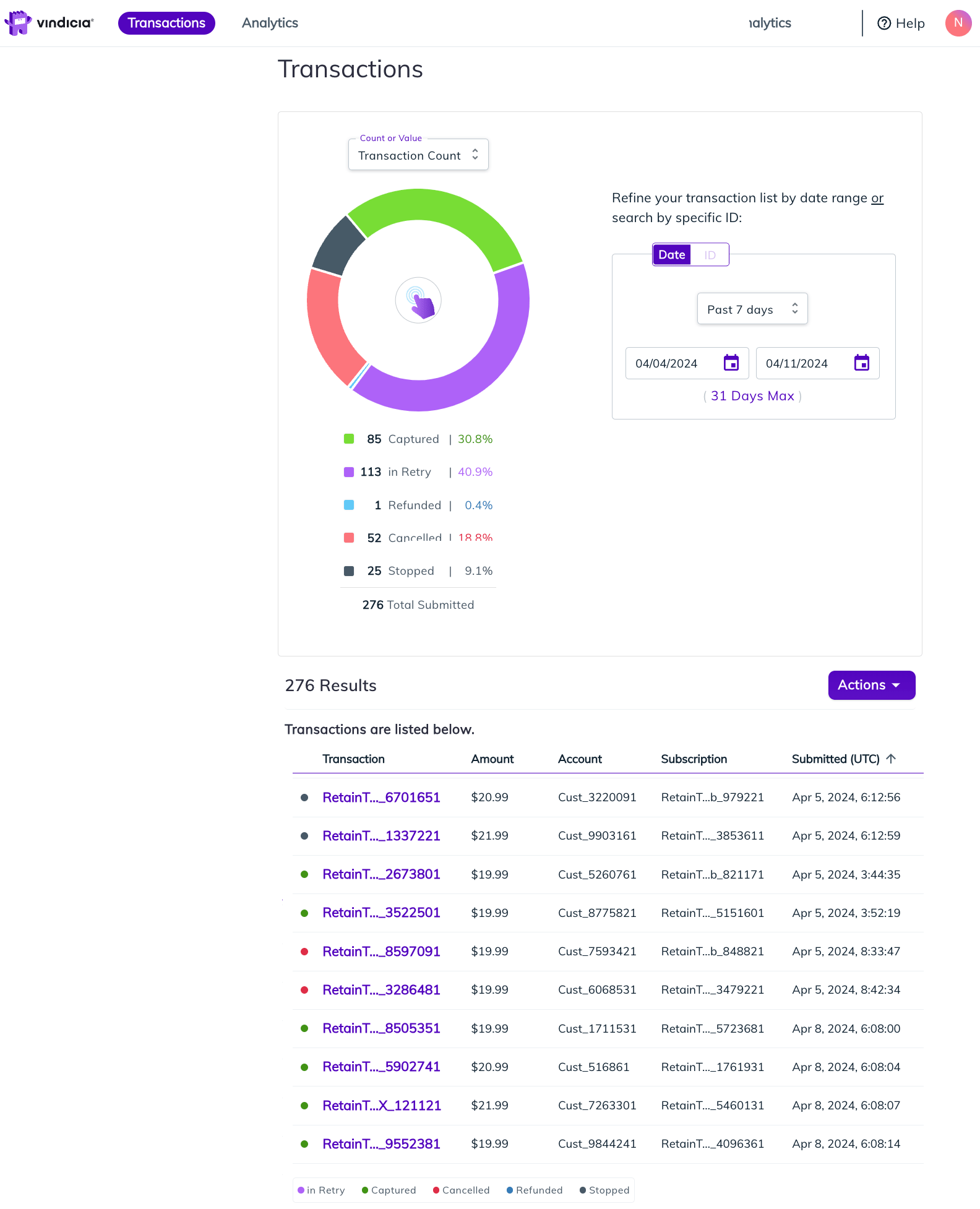
When searching by dates - a pie chart displays the Transactions divided by status either by Transaction count or by Transaction value by a specific currency (that you support). Search results appear at the bottom part of the page based on the search and filter input. The result list displays the same color coding for Transaction status to keep a consistent view throughout. The search page also includes an Actions menu, allowing you to select and perform an action on multiple Transaction results such as refunding multiple captured Transactions.
When searching by dates - a pie chart displays the Transactions divided by status either by Transaction count or by Transaction value by a specific currency (that you support). Search results appear at the bottom part of the page based on the search and filter input. The result list displays the same color coding for Transaction status to keep a consistent view throughout. The search page also includes an Actions menu, allowing you to select and perform an action on multiple Transaction results such as refunding multiple captured Transactions.
-
View Transaction Details: Once you select a specific Transaction to view from the search results, a detailed display shows info such as status, retry attempts, address, masked payment method, and authorization code.
The timeline on the page shows important occurrences for the Transaction as based on its status in Retain. For example, the timeline may show data points such as when it was submitted to Retain, retry attempts (if not yet captured, predicted future retries may appear), capture time, refund time etc.
Note: The Transaction timeline will appear correctly for Transactions submitted after the Retain January release.
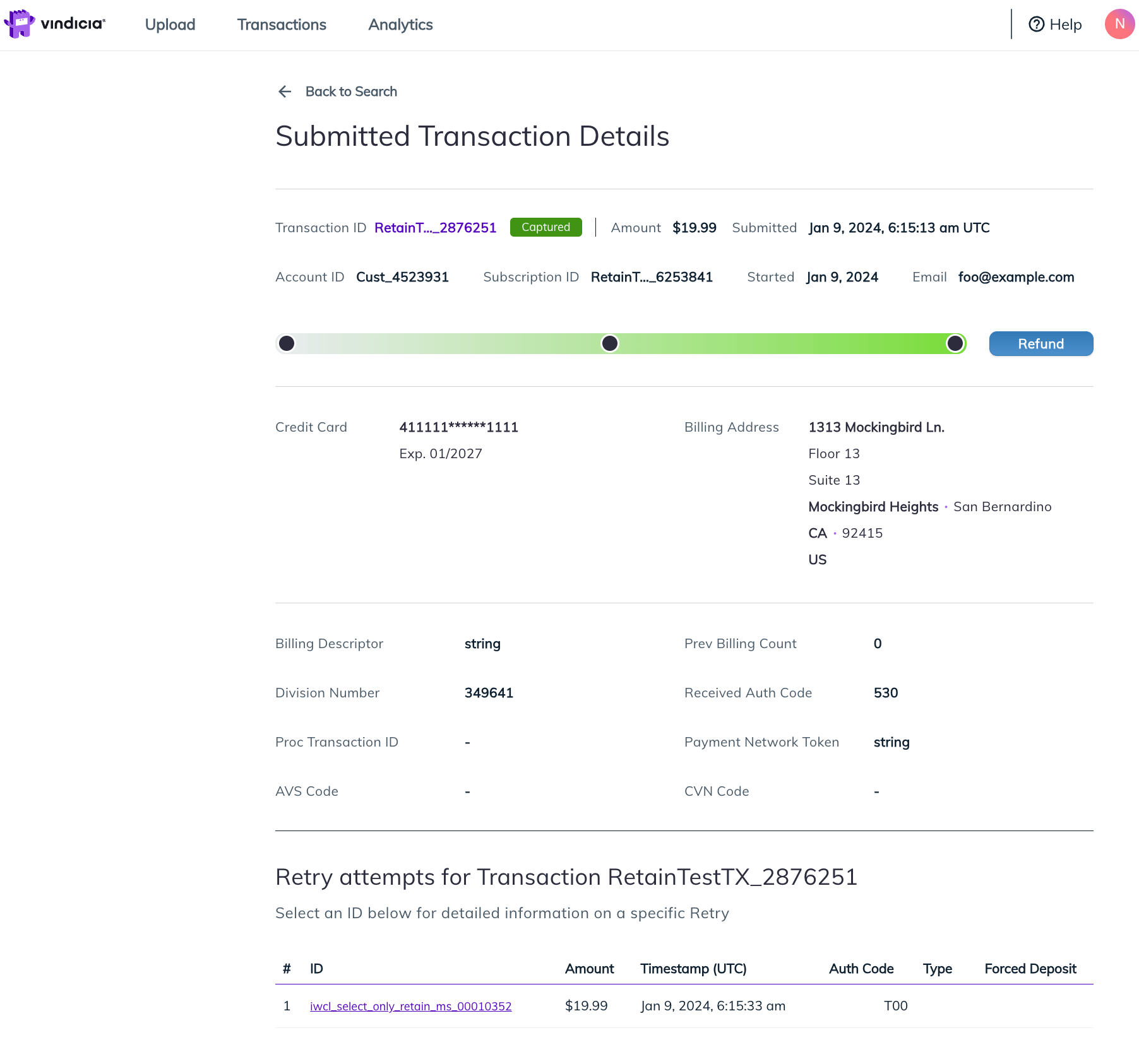
- View Retry Details: View detailed information about a specific retry attempt for a submitted Transaction. Access it by selecting a specific retry attempt in the Transaction Details page.
- Refund Transactions: Refunding in Retain is a request to return funds to the customer made by you, the merchant. It is only applicable for Transactions that have been captured. You can refund multiple Transactions from the Transaction Search page or refund a single Transaction from the relevant Transaction Details page. For more details, continue to Refund Transactions in Retain.
- Stop Transaction Reattempt and Capture: You can stop a Transaction that was submitted and is undergoing capture attempts (appears as in Retry status) from the relevant Transaction Details page. For more details, continue to Stop Transaction Capture in Retain.
- Search Retain Transactions
- View Retain Transactions and Retry Details
- Refund Transactions in Retain
-
Stop Transaction Capture in Retain
Stopping a transaction in Retain means that you have submitted a Transaction to Retain for capture and it is still in Retry status. The Transaction can be stopped and no further retry attempts will be made. - View Submission History and System Validation Error Files