
Refunding in Retain is a request to return funds to the customer made by you, the merchant. It is only applicable for Transactions that have been captured. Note: If you’d like to stop attempting to capture a Transaction, see Stop Transaction Capture in Retain. You can refund in Retain Hub in two ways: Note: Only full refunds are supported by Retain Hub at this time. Partial refunds can be performed using Retain REST API. Regardless of how you refund, the request is received and then sent to the payment provider for the return of funds. A full refund and return of funds to the customer may take several days - during that time the refund status shows as Refund Requested. When a successful response is received from the payment provider, the Transaction moves to the Refunded status. If the refund can’t be processed by the payment provider and an error is returned, Retain changes the Transaction status back to Captured. Parent topic:Retain Transactions

Refund Multiple Retain Transactions in the Search Page

Ensure that:
  • You have a list of the Transactions you’d like to refund.
  • All Transactions requiring refund were captured by Retain.
Refunding from the Search page, lets you use different search mechanisms to find the relevant (captured) Transactions and then bulk refund several (or a single) Transaction/s at a time. When searching, use at least one of the following:
  • Search by the relevant date range of Transaction submission to Retain to see a list of all the submitted Transactions.
  • Click the captured status of the pie chart to filter for only the captured Transactions, eligible for refund.
  • Search for specific Transactions by entering identifiers for the Transaction, Subscription, or customer Account.
The Actions menu lets you select and perform the refunding action on multiple Transaction results. To refund multiple Transactions from the Retain Transaction Search page, do the following:
  1. Search for the relevant Retain Transactions. The list of relevant Transaction result appears. Retain search result example filtered by last 7 days and Captured status (green on pie chart) only
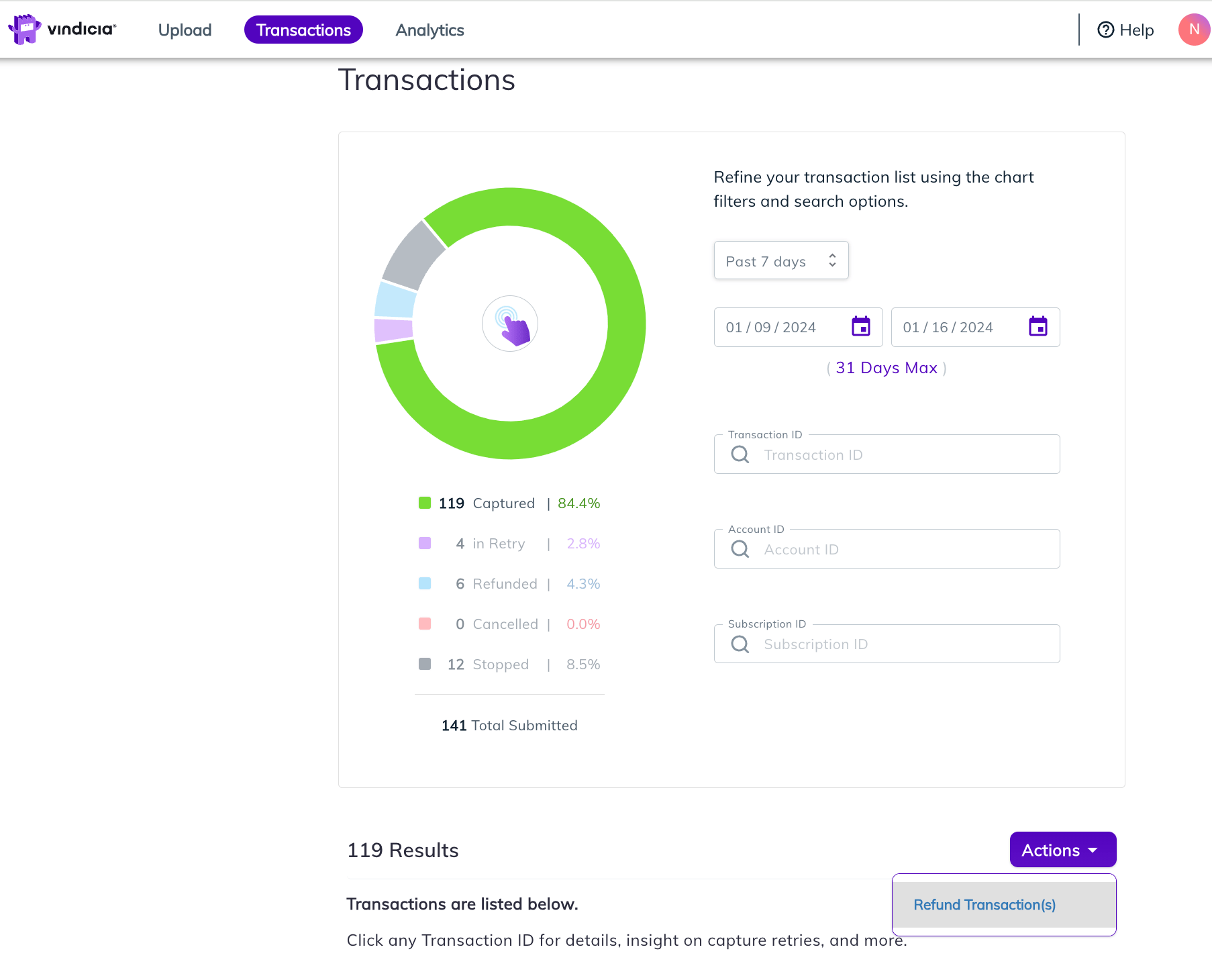
  2. Click the Actions menu and select Refund Transaction(s). The Select Transaction(s) functionality is enabled for the results table at the bottom half of the page.
  3. Select the relevant Transactions to refund using the selection circles. As you scroll down, your search results are continuously loaded. The number of selected Transactions and their total amounts are shown. Retain Select Transactions for Refund. Several Transactions have been selected - Number of Transactions and their total sum are shown
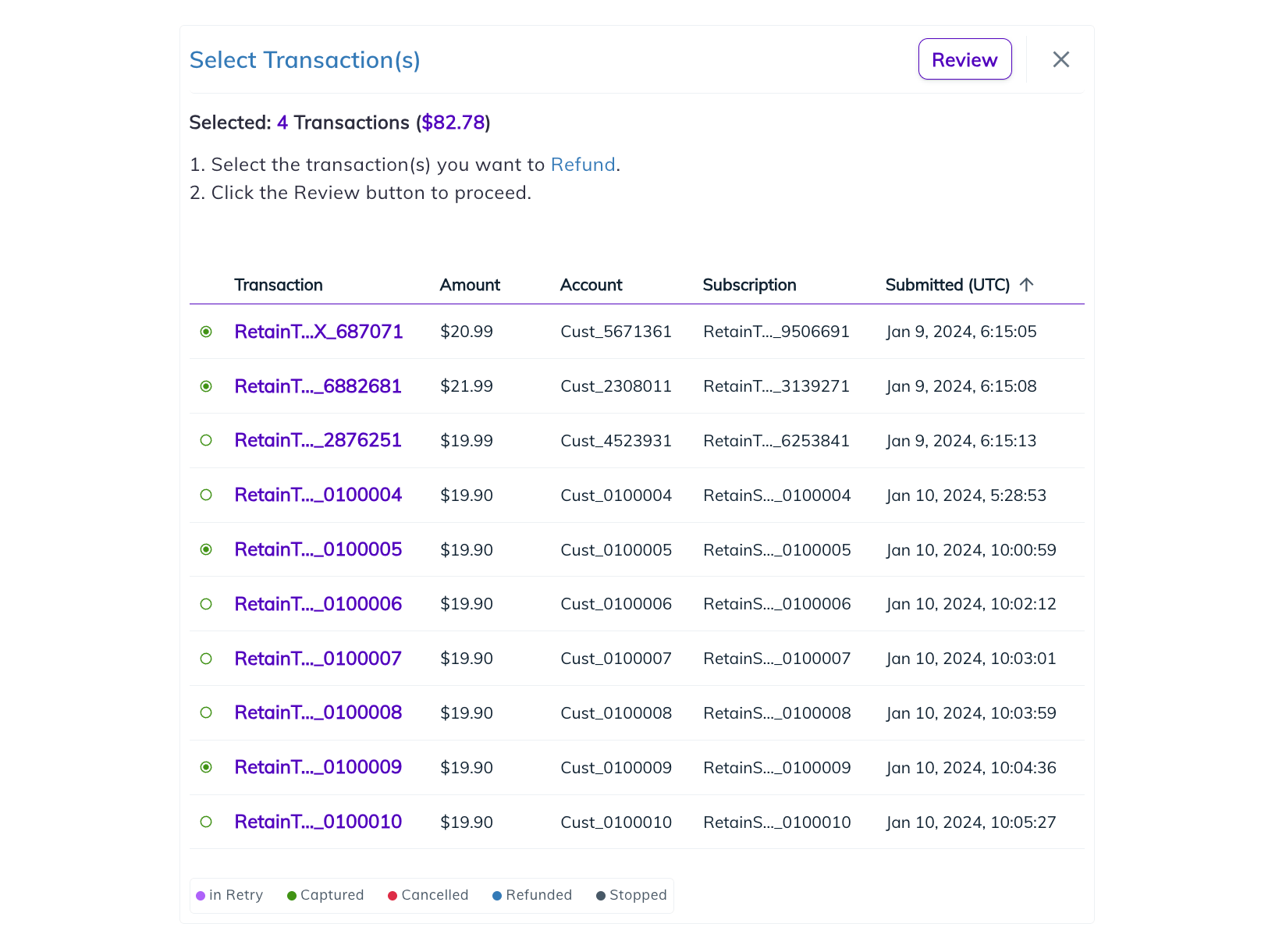
  4. Click Review. The Review Selection interface appears. Retain refund multiple Transactions Review
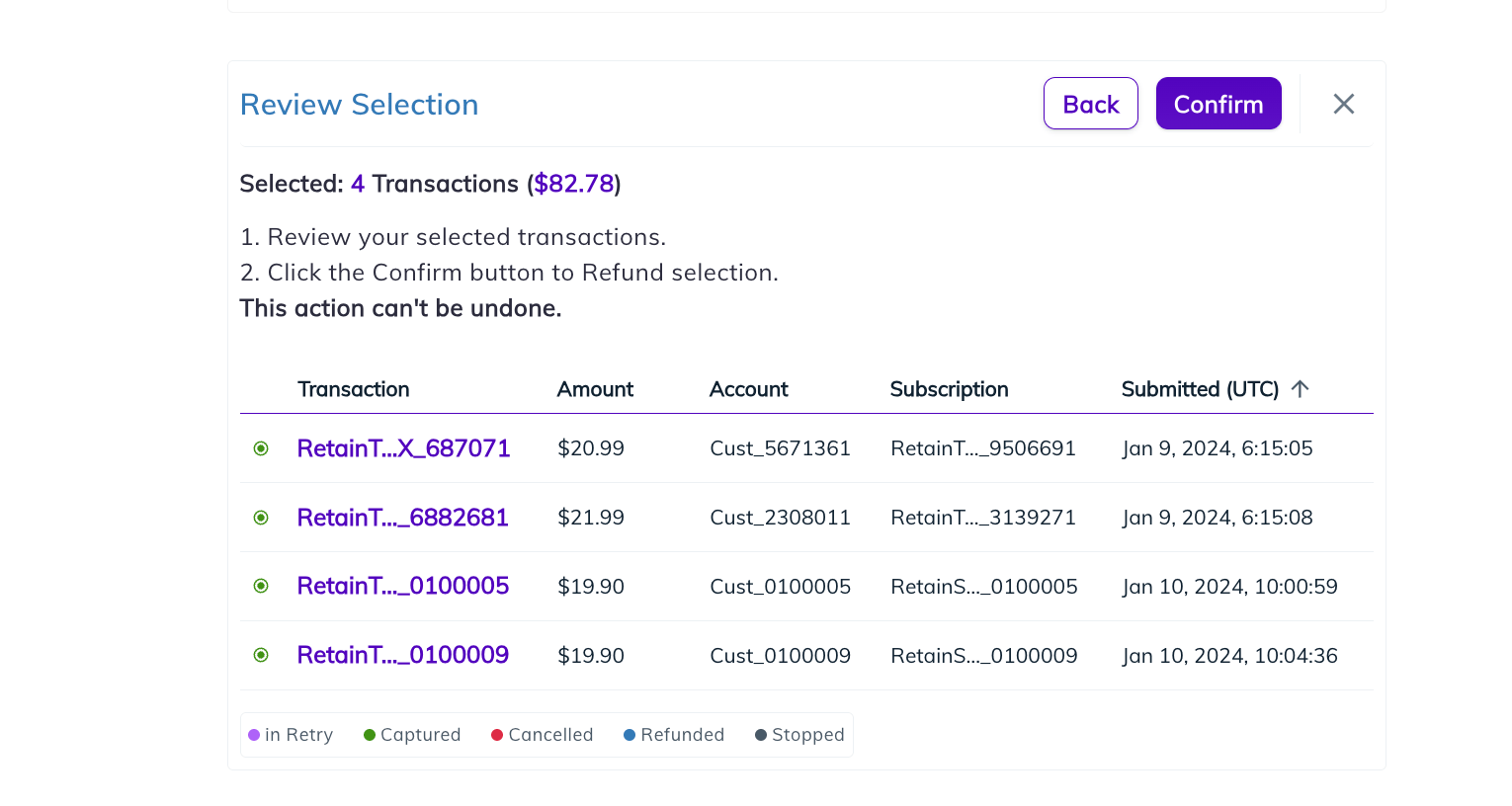
  5. Validate that the correct Transactions were selected. When sure, click Confirm. The request is received and a success message appears. If there is a communications error, an error appears and you will need to try again at a later time. Note: This action is final and a request to return funds to the customers is sent to the Payment Provider.
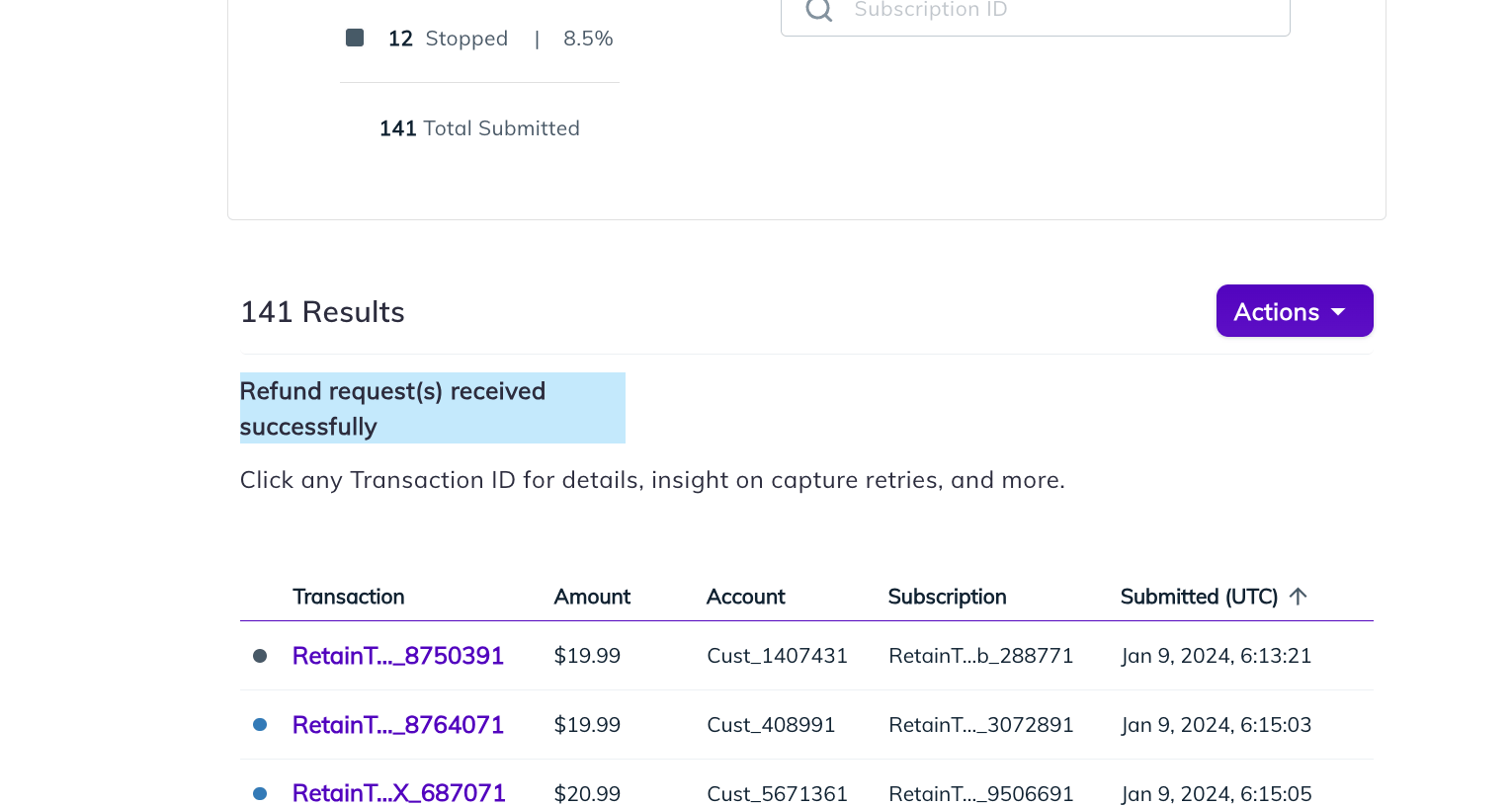
The request to refund the selected Transaction(s) is received and then sent to the payment provider for the return of funds. A full refund and return of funds to the customer may take several days - during that time the refund status shows as Refund Requested. When a successful response is received from the payment provider, the Transaction moves to the Refunded status. If the refund can’t be processed by the payment provider and an error is returned, Retain changes the Transaction status back to Captured. Parent topic:Refund Transactions in Retain

Refund A Specific Retain Transaction

Ensure that:
  • You have the Transaction’s identifying details handy.
  • The Transaction you’d like to refund was captured by Retain.
Refunding from the Transaction details page allows you to see all the Transactions details and main occurrences in the timeline and request a refund for the specific Transaction. You can refund in Retain Hub in two ways: Note: Only full refunds are supported by Retain Hub at this time. To refund a Transaction from the Retain Transaction Details page, do the following:
  1. Search for the relevant Retain Transaction. The list of relevant Transaction result appears.
  2. In the search results list, click the relevant Transaction ID. The Submitted Transaction Details Page appears. The page timeline shows the timestamps when the Transaction was submitted to Retain, retried and captured. Submitted Transaction Details Page Example
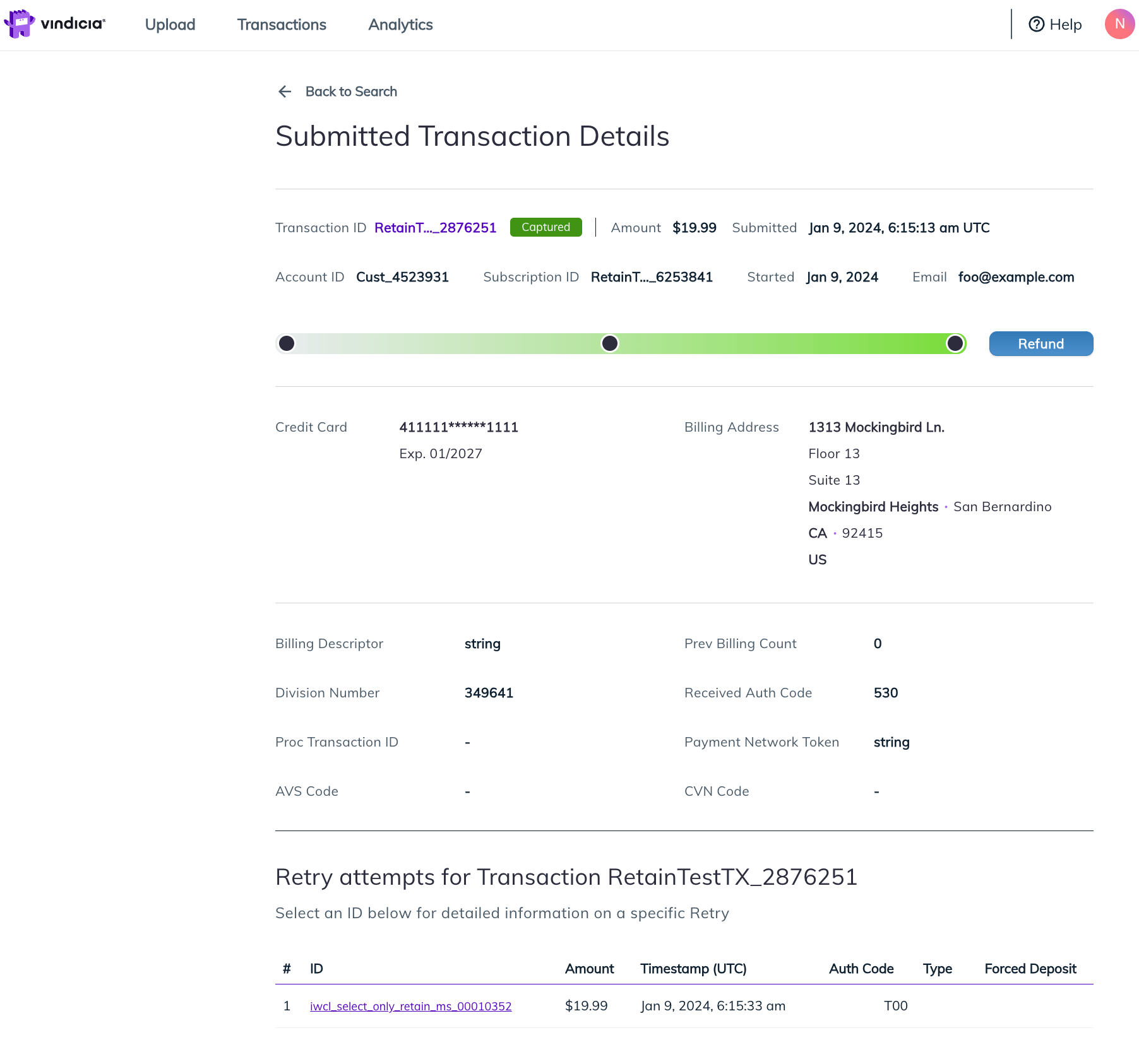
  3. Click the Refund button. The Retain Refund Transaction confirmation message appears. Retain Refund Transaction confirmation message example
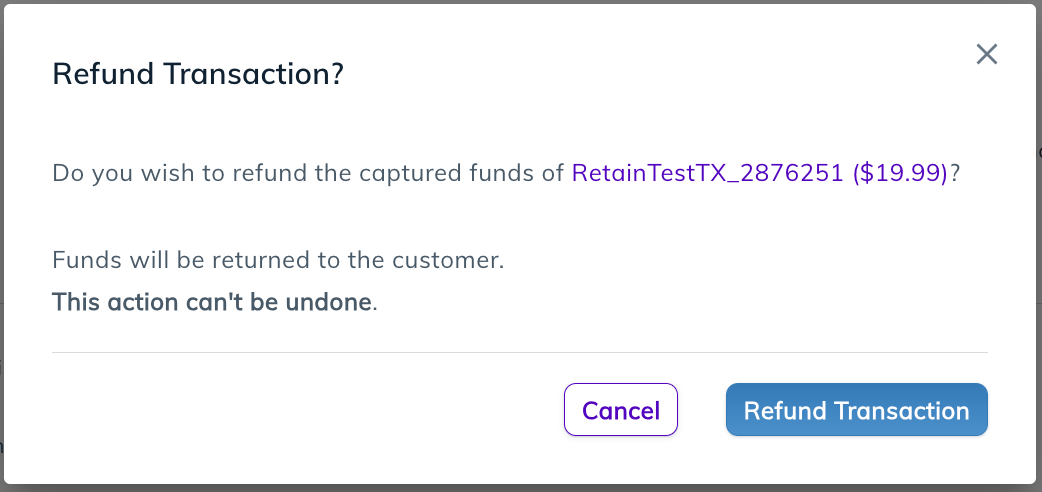
  4. Validate that the correct Transaction was selected. When sure, click Refund Transaction. The request is received and a success message appears. If there is a communications error, an error appears and you will need to try again at a later time. Note: This action is final and a request to return funds to the customers is sent to the Payment Provider. Retain Refund Transaction Request Received success message
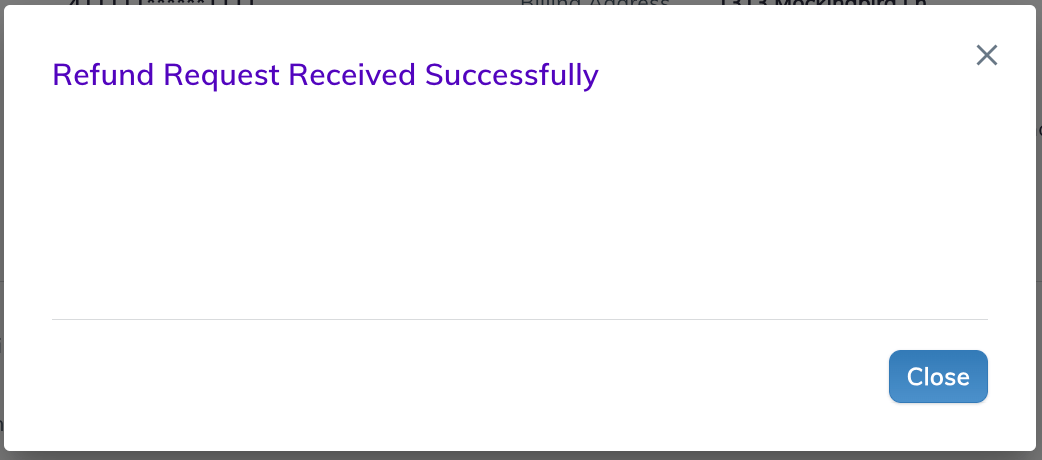
  5. Click Close. The Transaction Details page shows the new status (refund requested or refunded) and the timeline appears in the refund blue coloring with the new refund requested data point. Retain Transaction Refunded example Note: The Transaction timeline will appear correctly for Transactions submitted after the Retain January release.
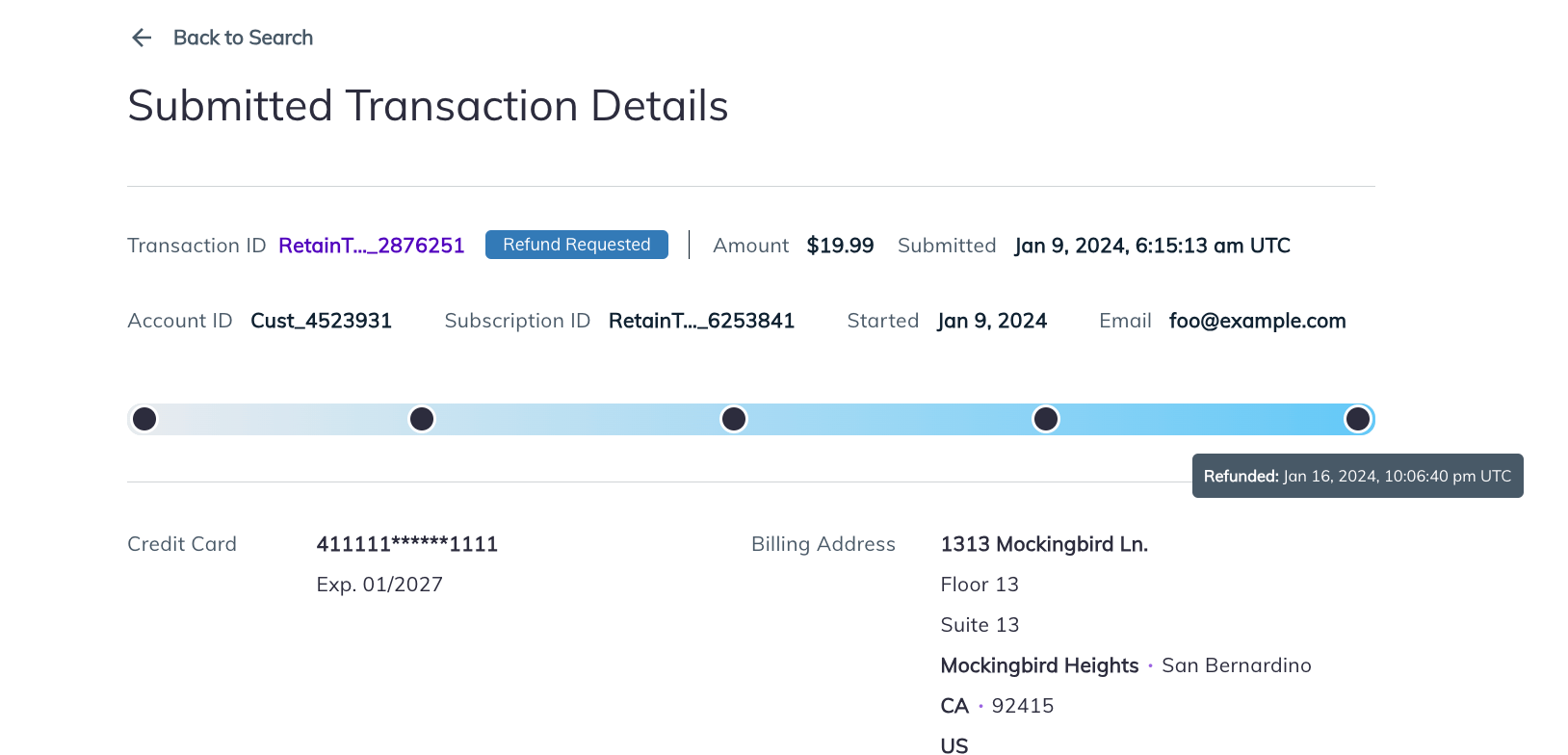
The request to refund the selected Transaction(s) is received and then sent to the payment provider for the return of funds. A full refund and return of funds to the customer may take several days - during that time the refund status shows as Refund Requested. When a successful response is received from the payment provider, the Transaction moves to the Refunded status. If the refund can’t be processed by the payment provider and an error is returned, Retain changes the Transaction status back to Captured. Parent topic:Refund Transactions in Retain