
Stopping a transaction in Retain means that you have submitted a Transaction to Retain for capture and it is still in Retry status. The Transaction can be stopped and no further retry attempts will be made. Requesting that a Transaction be stopped is a means to stop capture, such as when a customer requests to cancel the subscription immediately or a chargeback for a previous Transaction was filed by the customer. Retain allows stopping a single Transaction at a time from the Transaction Details page. Once stopped, the Transaction is moved to the Stopped status, which is a terminal status. Parent topic:Retain Transactions

Stop A Specific Retain Transaction

Ensure that:
  • You have the Transaction’s identifying details handy.
Stopping from the Transaction details page allows you to see all the Transactions details and main occurrences in the timeline and request to stop attempting capture. Note: You can stop a Transaction if it’s still in Retry status. To stop a Transaction from the Retain Transaction Details page, do the following:
  1. Search for the relevant Retain Transaction. The list of relevant Transaction result appears.
  2. In the search results list, click the relevant Transaction ID. The Submitted Transaction Details Page appears. The page timeline shows the timestamps when the Transaction was submitted to Retain, retried and predicted future retries. Submitted Transaction Detail page showing an example of an in Retry Transaction
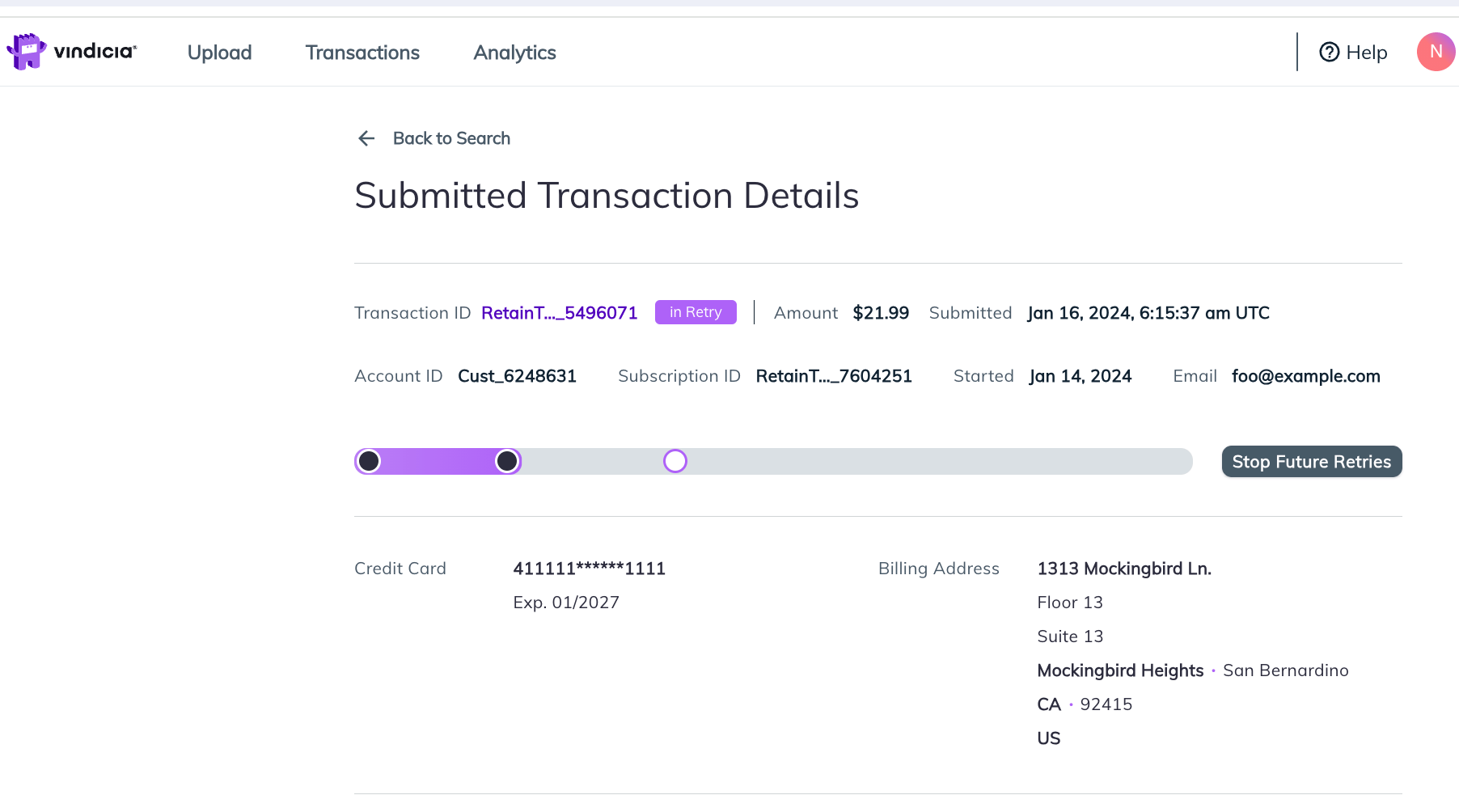
  3. Click the Stop Future Retries button. The Retain Stop Transaction confirmation message appears. Retain Stop Transaction confirmation message example
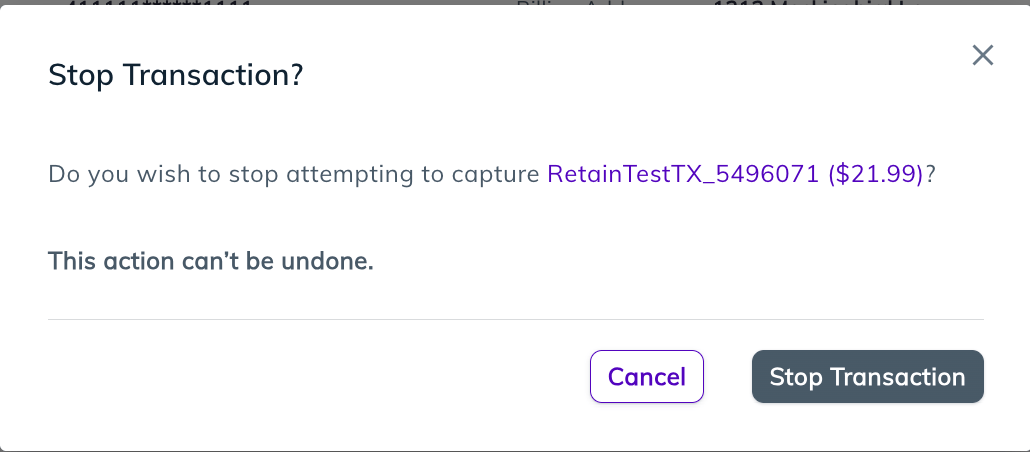
  4. Validate that the correct Transaction was selected. When sure, click Stop Transaction. The request is received and a success message appears. If there is a communications error, an error appears and you will need to try again at a later time. Note: This action is final and the Transaction can’t be reactivated. Retain Stop Transaction Request Received success message
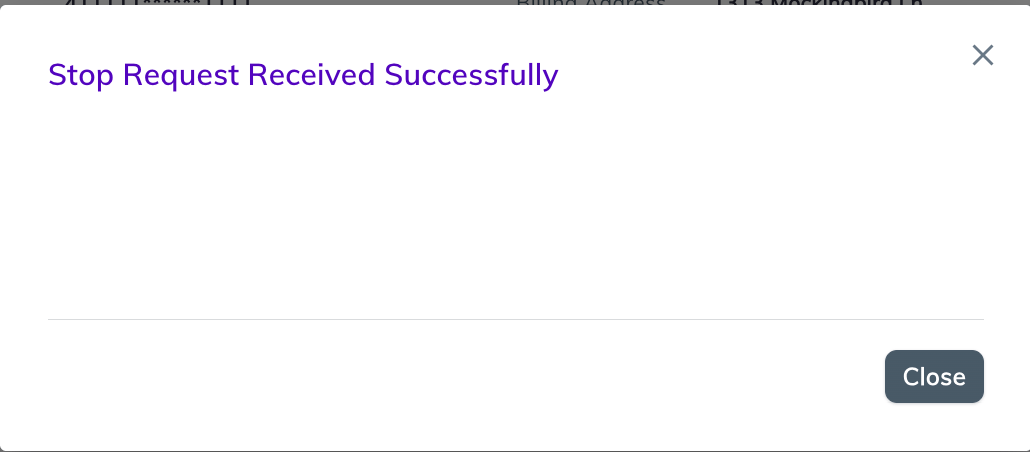
  5. Click Close. The Transaction Details page shows the new status (Stopped) and the timeline appears in the stop gray coloring with the new stopped data point. Retain Transaction Stopped example Note: The Transaction timeline will appear correctly for Transactions submitted after the Retain January release.
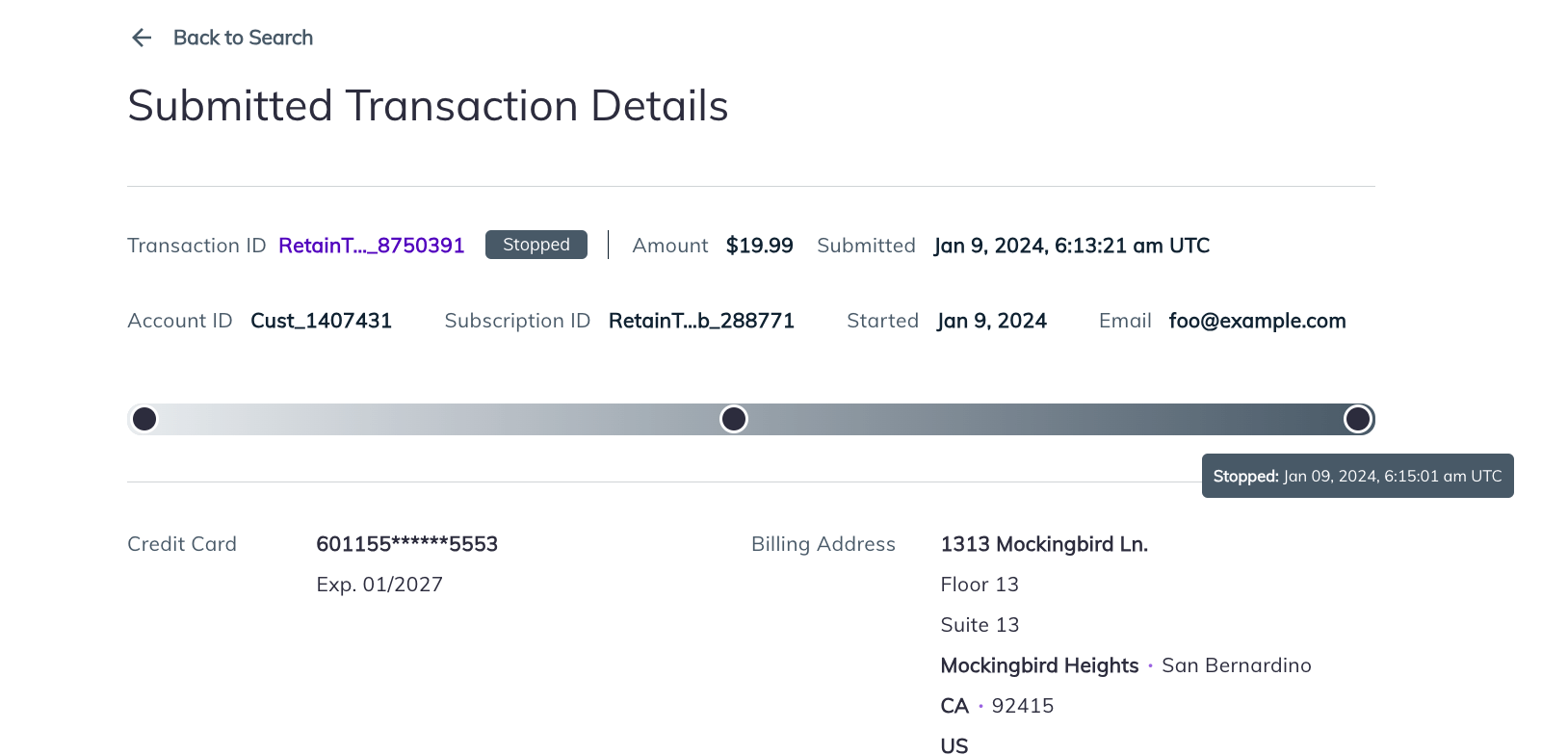
The Transaction is moved to Stopped status, a terminal status and new attempts will not be made to capture it. Parent topic:Stop Transaction Capture in Retain