
- Transaction submission duplicates
- Transaction hashing and encryption
- Payment method tokenization
- Ensure that at least one Transaction batch has been submitted.
- Log in to the Vindicia Retain Hub at https://portal.vindicia.com/portal/login
-
From the top menu, select Transactions > Submission History.
The Retain Submission History page appears.
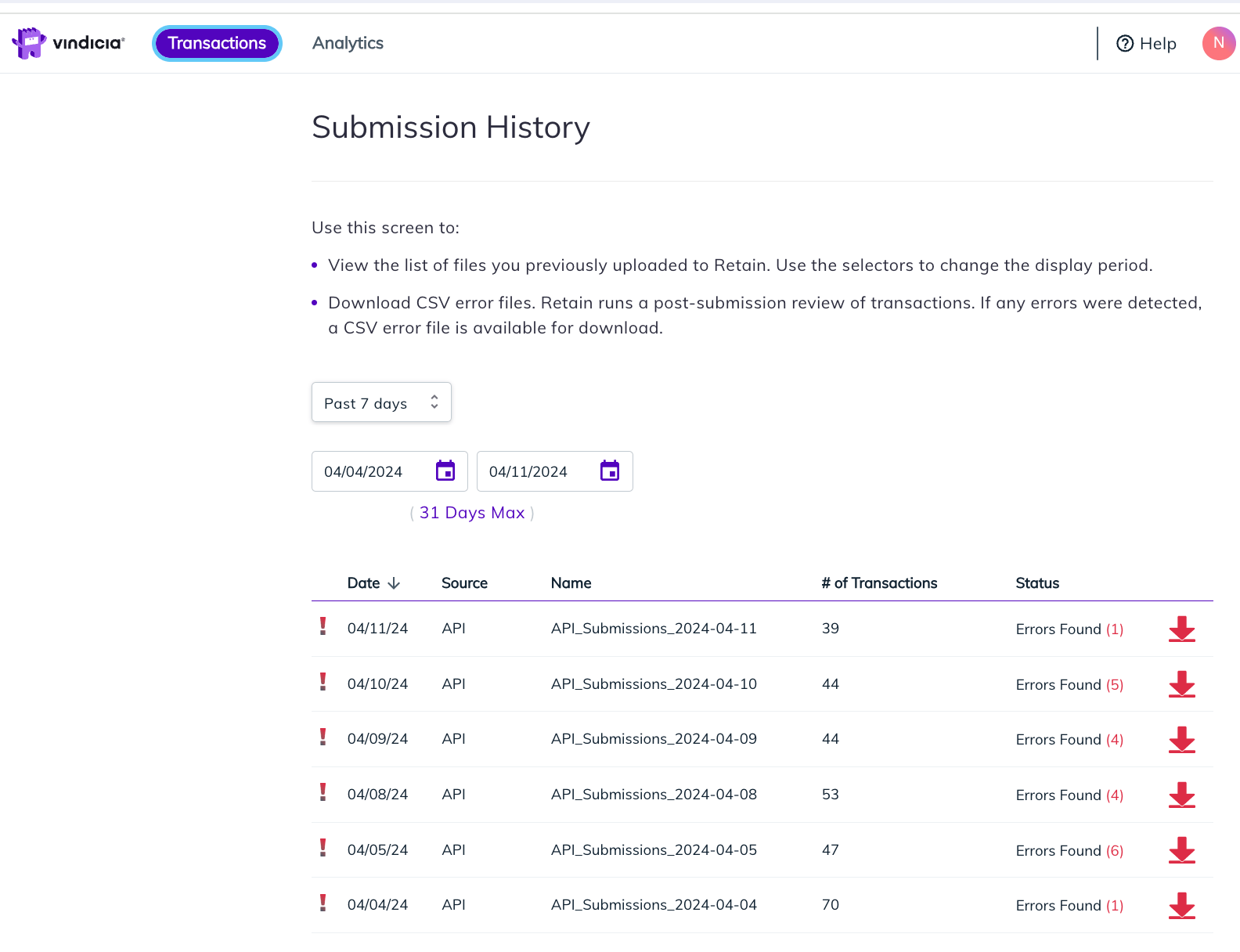
- Filter the dates to see the list of error files for the submitted Transactions in your merchant account. You can use the pre-defined options such as Past 7 days and Past 30 days. Otherwise, select custom dates and enter your required display period. The list of files in the table is updated according to the defined dates with Status Errors Found (# of Transactions with detected errors).
-
Click the Download icon

-
Open the CSV file with a spreadsheet application to see the Transactions that were not accepted by Retain as well as the relevant error code and description.
The following details appear per Transaction (row).
- api_request_id: The API batch identifier that is included in your POST request for the specific Transaction in question. This same identifier may be relevant for several rows, if several Transactions from the same batch had errors detected.
- id: The unique Transaction ID you submitted, allowing you to identify the specific Transaction.
- error: The error code and description, identifying the problem that was encountered for the specific Transaction.
- recommendations: Additional info explaining the problem and suggesting resolution steps. For resolution steps and more details, continue to Retain Transaction Submission Errors.