
- Sign in to the Care console. By default, the Find a User screen appears.
- Find and select a specific user. The selected user’s profile or Identity page displays.
-
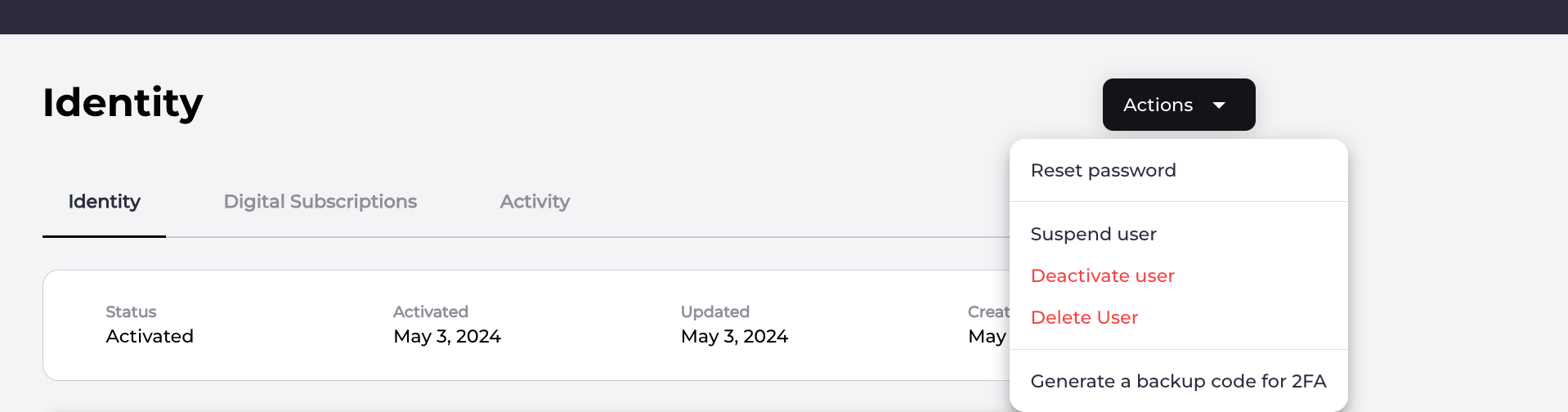
To reset the password, do either of the following:
-
On the selected user’s Identity page, navigate to Security > Password details and click Reset password.

-
On the selected user’s Identity page, navigate to Security > Password details and click Reset password.
-
On the selected user’s Identity page, navigate to Security > Password details and click Reset password.
-
Select one of the confirmation prompts:
- Send Link sends a notification message to the user on their specified channel (email or mobile number) with a link to reset their password.
- Cancel to return to the user’s Identity page.
Reset a Password
As a Care agent, you initiate a password recovery and reset process on behalf of a user.