> ## Documentation Index
> Fetch the complete documentation index at: https://docs.vindicia.com/llms.txt
> Use this file to discover all available pages before exploring further.
# Update a User's Details
Update your merchant users basic identity details or profile settings. These can be details such as display name, first name, email or mobile phone number. Use this process to add an email address or to update an email address.
1. Sign in to the Vindicia IDP Console by clicking Manage Users Link in the Vindicia portal under your account avatar.
2. Search for the desired user. The selected user's **Identity** page opens.
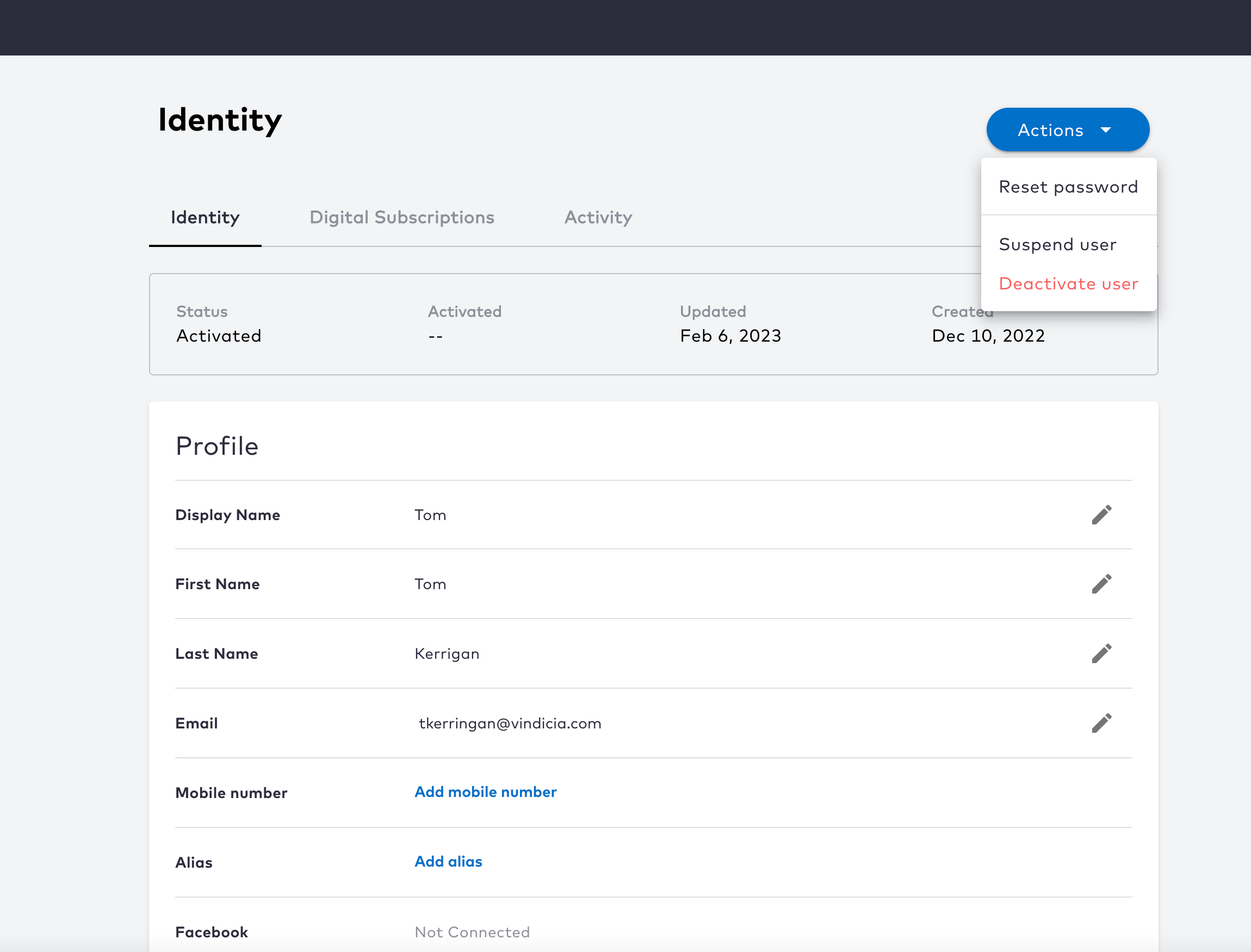 3. Edit the following **Profile** details by clicking
  pencil edit icon:
* **Display Name** - enter the user's preferred display name.
* **First Name** - enter the user's given name.
* **Last Name** - enter the user's family name.
* **Email** - You can add an alternate email or update the existing email:
* To add an alternate email, click **Add alternate email**, fill in the details and click **Add email**.
The new email address is registered to the user with an **Activating** status. The system sends a verification message to the new address.
The user must verify the email in order to fully activate this email address and remove the previous one. If the user deletes or misplaces their verification message, or if they let it expire, you can [resend a verification message](verificationMessage) to this email address.
* To update the existing email, enter the new email and click **Save**.
The updated email address is registered to the user's profile with a **pending** status. The system then sends a verification message to the new email address. The user must verify the email in order to fully activate this email address and remove the previous one.
If the user deletes or misplaces their verification message, or if they let it expire, you can [resend a verification message](verificationMessage) to this email address.
**Note:** The previous or current email address is still fully activated, and can therefore still be used to sign in, until the new email address is verified.
4. After each edit, click one of the following options:
* **Save** to update the changes immediately.
* **Cancel** to revert the changes and return to the user's **Identity** page.
5. Edit the **Security** details to [reset the user password](resettingPassword).
The details of the selected user are updated.
**Parent topic:**[Vindicia IDP 1.0 Console User Management Capabilities](../topics/userManagement1Capabilites)
**Parent topic:**[Vindicia IDP 2.0 Console User Management Capabilities](../topics/userManagement2Capabilites)
This documentation is built and hosted on [Mintlify](https://mintlify.com), a developer documentation platform.
pencil edit icon:
* **Display Name** - enter the user's preferred display name.
* **First Name** - enter the user's given name.
* **Last Name** - enter the user's family name.
* **Email** - You can add an alternate email or update the existing email:
* To add an alternate email, click **Add alternate email**, fill in the details and click **Add email**.
The new email address is registered to the user with an **Activating** status. The system sends a verification message to the new address.
The user must verify the email in order to fully activate this email address and remove the previous one. If the user deletes or misplaces their verification message, or if they let it expire, you can [resend a verification message](verificationMessage) to this email address.
* To update the existing email, enter the new email and click **Save**.
The updated email address is registered to the user's profile with a **pending** status. The system then sends a verification message to the new email address. The user must verify the email in order to fully activate this email address and remove the previous one.
If the user deletes or misplaces their verification message, or if they let it expire, you can [resend a verification message](verificationMessage) to this email address.
**Note:** The previous or current email address is still fully activated, and can therefore still be used to sign in, until the new email address is verified.
4. After each edit, click one of the following options:
* **Save** to update the changes immediately.
* **Cancel** to revert the changes and return to the user's **Identity** page.
5. Edit the **Security** details to [reset the user password](resettingPassword).
The details of the selected user are updated.
**Parent topic:**[Vindicia IDP 1.0 Console User Management Capabilities](../topics/userManagement1Capabilites)
**Parent topic:**[Vindicia IDP 2.0 Console User Management Capabilities](../topics/userManagement2Capabilites)
This documentation is built and hosted on [Mintlify](https://mintlify.com), a developer documentation platform.