> ## Documentation Index
> Fetch the complete documentation index at: https://docs.vindicia.com/llms.txt
> Use this file to discover all available pages before exploring further.
# Suspend User in Vindicia IDP 1.0 Console
You can temporarily suspend a specific user. This action is reversible from the Vindicia IDP 1.0 console. .
1. Sign in to the Care console. By default, the **Find a User** screen appears.
2. [Find and select](findUser#) a specific user. The selected user's profile or **Identity** page displays.
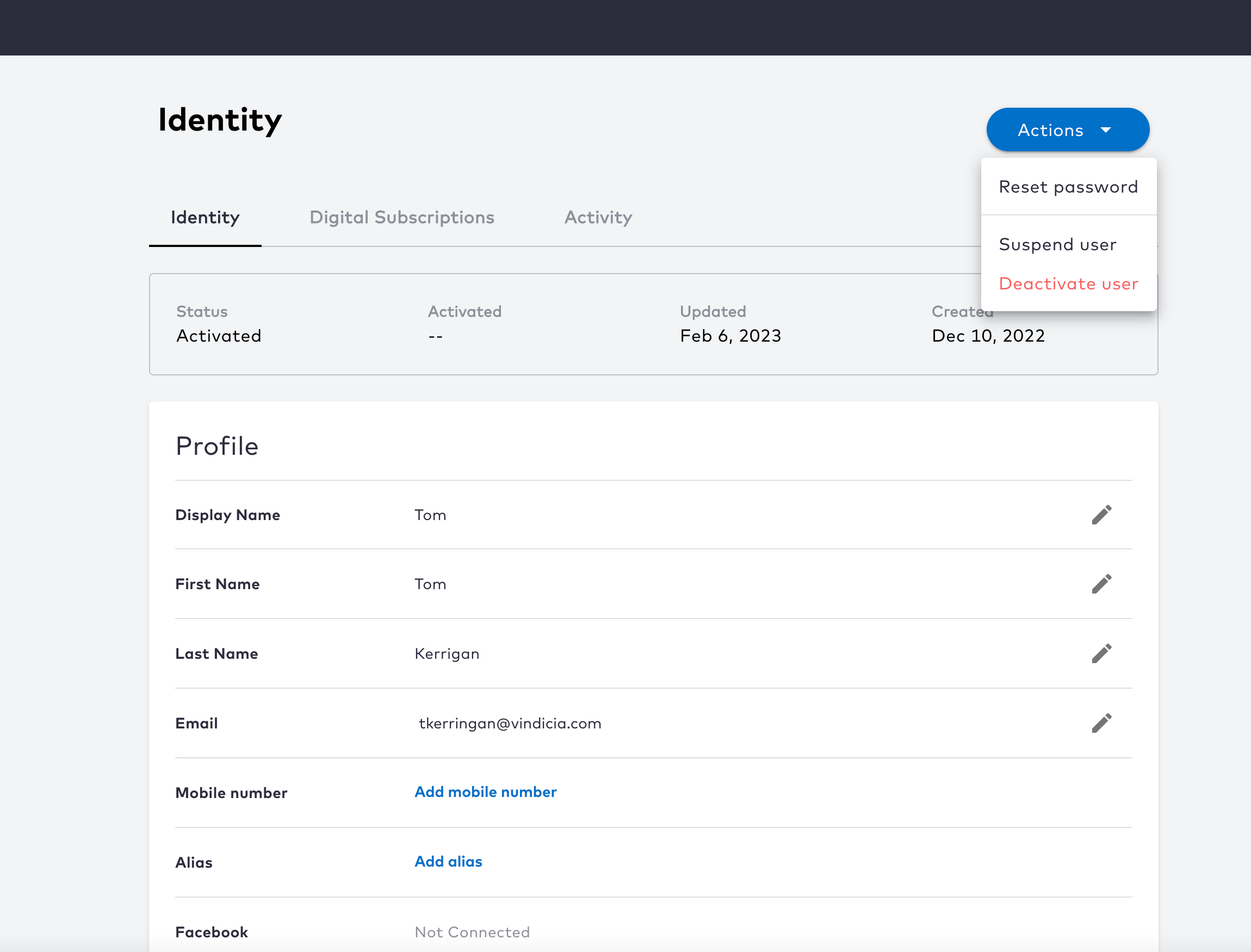 3. To temporarily suspend the user, select **Actions** > **Suspend User** from the top-right corner.
4. Click **Suspend** to temporarily suspend the user, or click **Cancel** to go back.
**Note:** The user is logged out of all current sessions. User authentication is prevented until the suspension is removed.
The selected user is now suspended and can no longer authenticate or access related services. The system retains all user records and they are viewable from the Activity tab in the Vindicia IDP console.
* **[Remove a Suspension](../topics/suspendingUser#)**
**Parent topic:**[Vindicia IDP 1.0 Console User Management Capabilities](../topics/userManagement1Capabilites)
## Remove a Suspension
As a Care agent, you can remove a suspension from a user to restore their access. Once you search for and select a user, select the **Actions** > **Remove suspension**. This option is only visible if the selected user is in **Suspended** status.
1. Sign in to the Care console. By default, the **Find a User** screen appears.
2. [Find and select](findUser#) a specific user to open selected user's profile or **Identity** page.
3. Navigate to **Actions** > **Remove suspension** located in the top-right corner.
3. To temporarily suspend the user, select **Actions** > **Suspend User** from the top-right corner.
4. Click **Suspend** to temporarily suspend the user, or click **Cancel** to go back.
**Note:** The user is logged out of all current sessions. User authentication is prevented until the suspension is removed.
The selected user is now suspended and can no longer authenticate or access related services. The system retains all user records and they are viewable from the Activity tab in the Vindicia IDP console.
* **[Remove a Suspension](../topics/suspendingUser#)**
**Parent topic:**[Vindicia IDP 1.0 Console User Management Capabilities](../topics/userManagement1Capabilites)
## Remove a Suspension
As a Care agent, you can remove a suspension from a user to restore their access. Once you search for and select a user, select the **Actions** > **Remove suspension**. This option is only visible if the selected user is in **Suspended** status.
1. Sign in to the Care console. By default, the **Find a User** screen appears.
2. [Find and select](findUser#) a specific user to open selected user's profile or **Identity** page.
3. Navigate to **Actions** > **Remove suspension** located in the top-right corner.
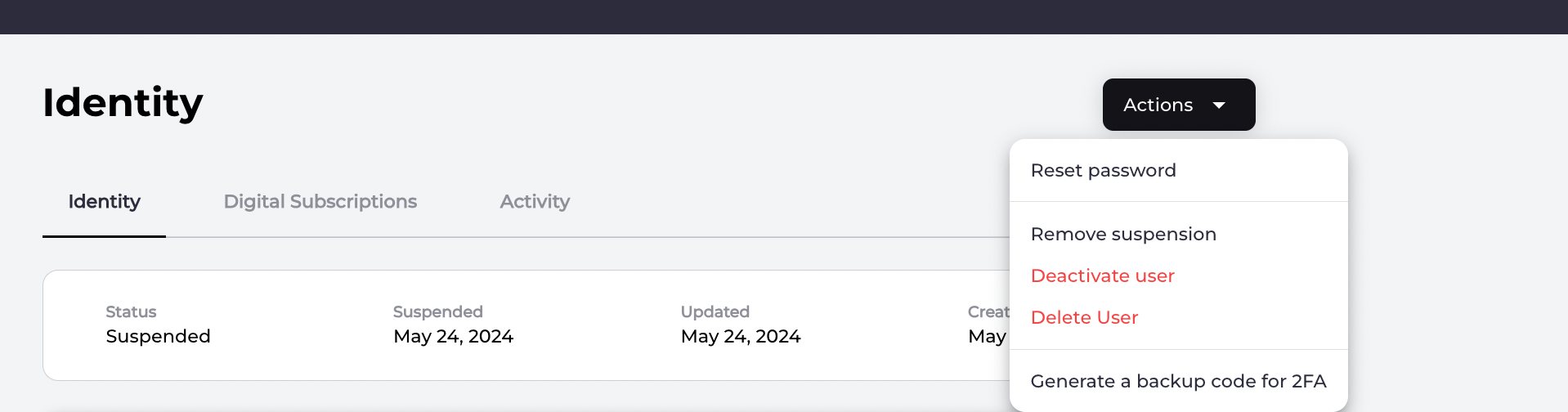 4. Select **Remove suspension** and allow the user to authenticate, and access resources/services again.
The selected user's suspension is removed and the user status updates to **Activated** in the Care console. The user can authenticate and access resource/services (that is, they can sign in to your applications that use Connect).
**Parent topic:**[Suspend User in Vindicia IDP 1.0 Console](../topics/suspendingUser#)
This documentation is built and hosted on [Mintlify](https://mintlify.com), a developer documentation platform.
4. Select **Remove suspension** and allow the user to authenticate, and access resources/services again.
The selected user's suspension is removed and the user status updates to **Activated** in the Care console. The user can authenticate and access resource/services (that is, they can sign in to your applications that use Connect).
**Parent topic:**[Suspend User in Vindicia IDP 1.0 Console](../topics/suspendingUser#)
This documentation is built and hosted on [Mintlify](https://mintlify.com), a developer documentation platform.