> ## Documentation Index
> Fetch the complete documentation index at: https://docs.vindicia.com/llms.txt
> Use this file to discover all available pages before exploring further.
# Assign User Roles
As a Super user with care representative privileges, you can add assign a role or change a role in the Vindicia IDP 2.0 Console. By defining a role, you are defining the visibility that the user will have in the Vindicia Portal.
**Note:** To learn more about Vindicia roles:
* For Vindicia Retain, see [roles in the Retain User Guide](/portal/retainPortalUserGuide/topics/portalRetainUserRoles).
* For Vindicia Subscribe, see [roles in the Subscribe User Guide](https://docs.vindicia.com/bundle/b_Subscribe_Portal2_User_Guide/page/topics/portalUserRoles.html).
* When creating an additional Super user with user management permissions, you'll need to add two roles, the relevant super User role (functional for the Vindicia portal) as well as Care representative role (provides user management privileges in Vindicia IDP).
1.
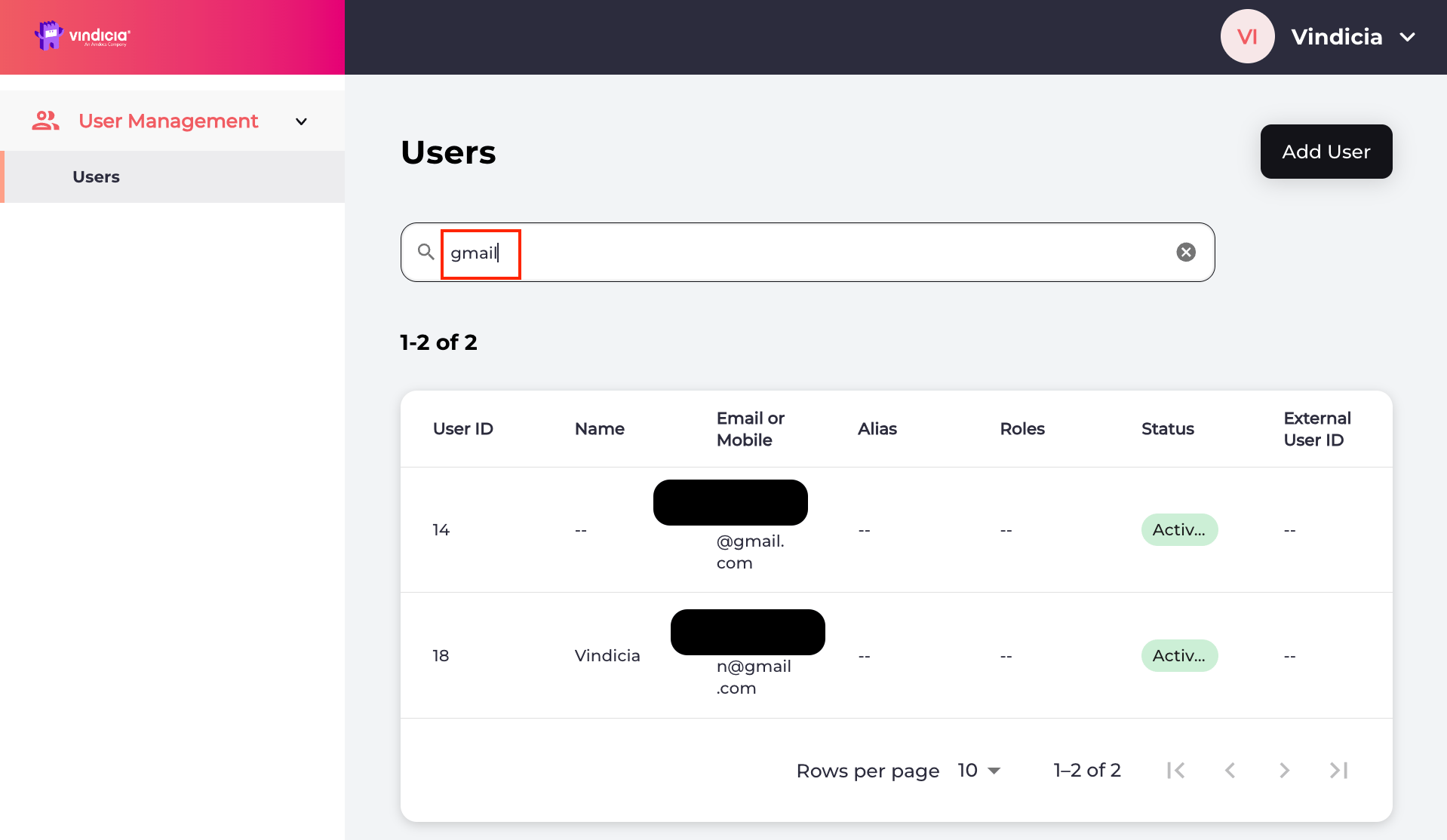
Sign in to Vindicia IDP Console 2.0 by clicking **Manage Users** Link in the Vindicia Portal under your account avatar.
The User Management screen appears.
 2.
[Search for the relevant user](adminSearchUser) or select the user from the list.
The selected user's **Identity** page opens.
3. In the **Roles and Permissions** pane, click the
2.
[Search for the relevant user](adminSearchUser) or select the user from the list.
The selected user's **Identity** page opens.
3. In the **Roles and Permissions** pane, click the  pencil edit icon.
A Select... dropdown appears.
4. Click the Select... dropdown and choose the relevant role to assign to the selected user by checking the box beside the role name.
**Note:** For access to the Vindicia Portal, assign a single role.
When assigning a Super User role, make sure to assign both the relevant Super User role and the Care representative role, which provides user management privileges in the Vindicia IDP console.
pencil edit icon.
A Select... dropdown appears.
4. Click the Select... dropdown and choose the relevant role to assign to the selected user by checking the box beside the role name.
**Note:** For access to the Vindicia Portal, assign a single role.
When assigning a Super User role, make sure to assign both the relevant Super User role and the Care representative role, which provides user management privileges in the Vindicia IDP console.
 5. Click one of the following options:
* **Save** to save the changes immediately.
* **Cancel** to revert the changes and return to the user's **Identity** page.
6. To remove a role, click the
5. Click one of the following options:
* **Save** to save the changes immediately.
* **Cancel** to revert the changes and return to the user's **Identity** page.
6. To remove a role, click the  **x** icon beside the role to remove the entry and then click **Save**.
The role(s) of the selected user have been assigned or updated.
**Parent topic:**[Vindicia IDP 2.0 Console User Management Capabilities](../topics/userManagement2Capabilites)
This documentation is built and hosted on [Mintlify](https://mintlify.com), a developer documentation platform.
**x** icon beside the role to remove the entry and then click **Save**.
The role(s) of the selected user have been assigned or updated.
**Parent topic:**[Vindicia IDP 2.0 Console User Management Capabilities](../topics/userManagement2Capabilites)
This documentation is built and hosted on [Mintlify](https://mintlify.com), a developer documentation platform.