> ## Documentation Index
> Fetch the complete documentation index at: https://docs.vindicia.com/llms.txt
> Use this file to discover all available pages before exploring further.
# Reset a Password in Vindicia IDP 2.0 Console
Initiate a password recovery and reset process on behalf of a user in the Vindicia IDP 2.0 Console.
1.
Sign in to Vindicia IDP Console 2.0 by clicking **Manage Users** Link in the Vindicia Portal under your account avatar.
The User Management screen appears.
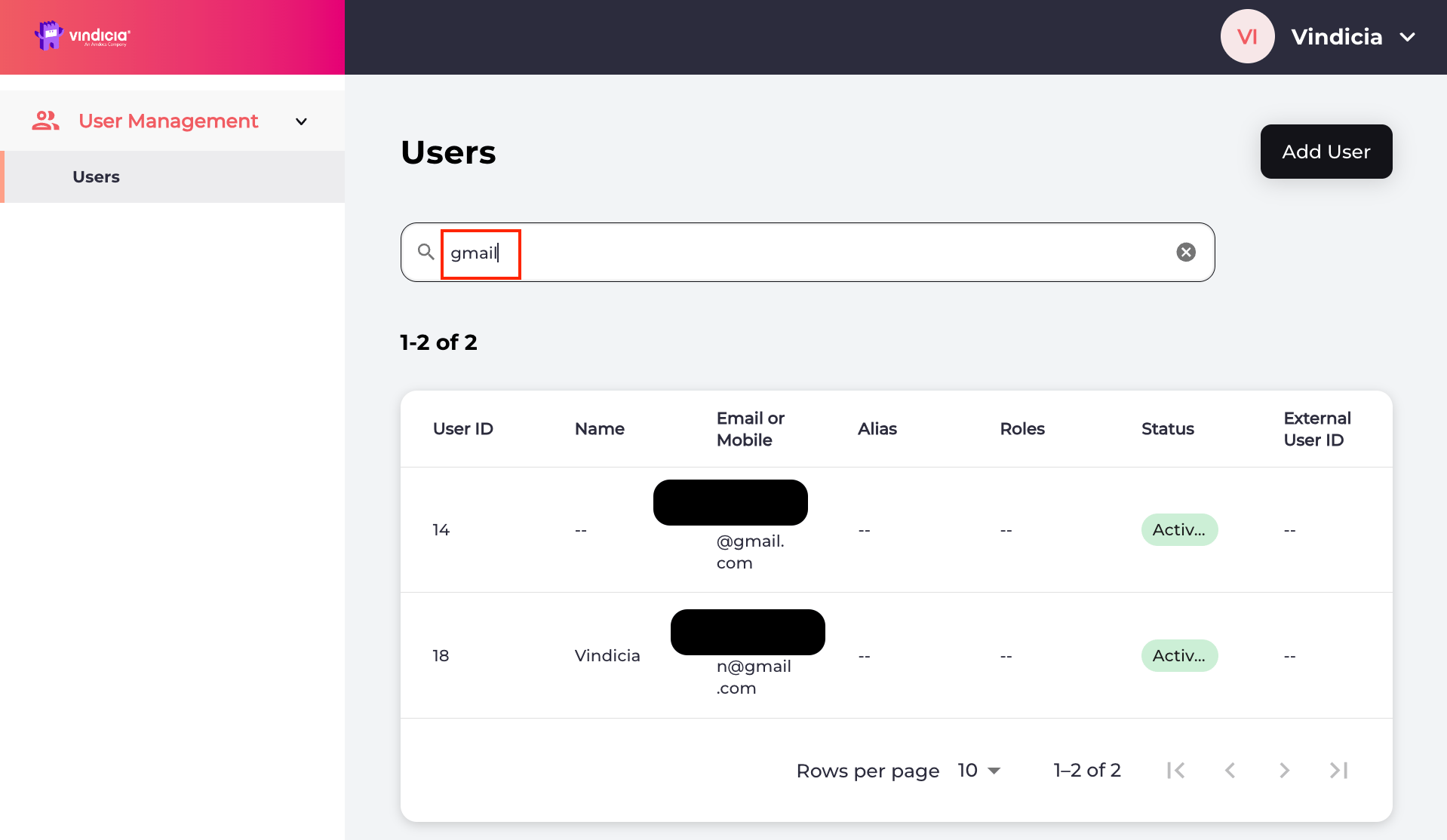 2.
[Search for the relevant user](adminSearchUser) or select the user from the list.
The selected user's **Identity** page opens.
3. To reset the password, do either of the following:
* On the selected user's **Identity** page, navigate to **Security** > **Password** details and click **Reset password**.
2.
[Search for the relevant user](adminSearchUser) or select the user from the list.
The selected user's **Identity** page opens.
3. To reset the password, do either of the following:
* On the selected user's **Identity** page, navigate to **Security** > **Password** details and click **Reset password**.
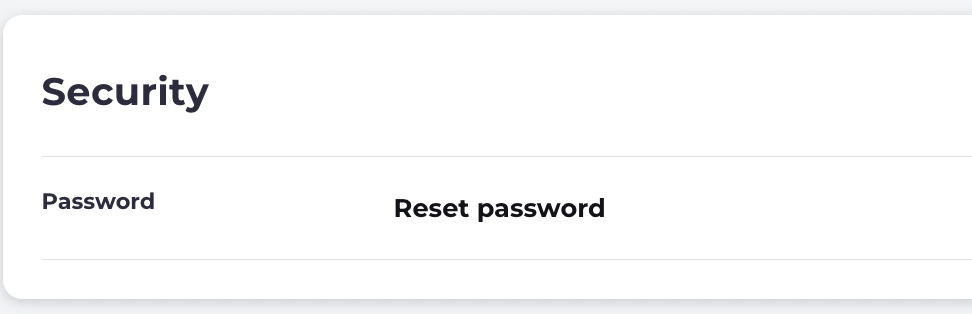 * On the selected user's **Identity** page, navigate to **Security** > **Password** details and click **Reset password**.
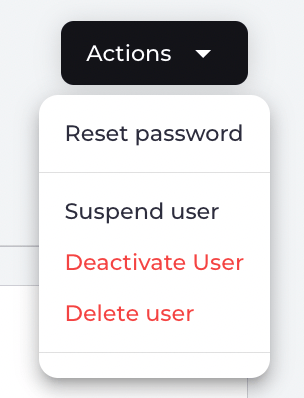 4. Select one of the confirmation prompts:
* **Send Link** sends a notification message to the user on their specified channel (email or mobile number) with a link to reset their password.
* **Cancel** to return to the user's **Identity** page.
The system sends a password reset notification message to the user's specified email. The current password doesn't change until the user opens the notification message and follows the link in that message. The user is redirected to log in to the Vindicia portal and prompted for a new password.
**Parent topic:**[Vindicia IDP 2.0 Console User Management Capabilities](../topics/userManagement2Capabilites)
This documentation is built and hosted on [Mintlify](https://mintlify.com), a developer documentation platform.
4. Select one of the confirmation prompts:
* **Send Link** sends a notification message to the user on their specified channel (email or mobile number) with a link to reset their password.
* **Cancel** to return to the user's **Identity** page.
The system sends a password reset notification message to the user's specified email. The current password doesn't change until the user opens the notification message and follows the link in that message. The user is redirected to log in to the Vindicia portal and prompted for a new password.
**Parent topic:**[Vindicia IDP 2.0 Console User Management Capabilities](../topics/userManagement2Capabilites)
This documentation is built and hosted on [Mintlify](https://mintlify.com), a developer documentation platform.