> ## Documentation Index
> Fetch the complete documentation index at: https://docs.vindicia.com/llms.txt
> Use this file to discover all available pages before exploring further.
# Retain Transactions Report
The Retain Transactions report lists [Transaction](glossRetainTransaction) details for the relevant time period including retry count and status of the Transaction.
Retain Transactions report lets you choose different criteria and filters to generate the report you need.
Two flavors of Retain Transaction Reports can be generated:
* **Transaction Submissions**: generate a report based on the dates your Transactions were submitted to Retain.
* **Latest Events**: generate a report of Transactions for which events or activity occurred in the desired date range.
Additionally, you can use the optional filters to generate more specific Transaction reports such as:
* a report of Transactions in a certain **currency**.
* a report of Transactions in a specific **status**.
* a report of Transactions with a specified number of **retry attempts**.
* a report of Transactions included in a specific **subscription**.
* a report of Transactions purchased by a specific **customer account**.
* a report of Transactions that were successfully captured by **force deposit**
The **Retain Transactions** report can be downloaded when ready from the [My Reports](reportsMyReports) page.
* **[Generate Retain Transactions Report](../topics/retainTransactionsReport#)**
* **[Retain Transactions Report Output and Display Columns](../topics/retainTransactionsReport#)**
**Parent topic:**[SubscribeRetain Reports](../topics/reportsAbout)
## Generate Retain Transactions Report
### To Generate a One-Time Report
To generate a one-time **Retain Transactions** report, do the following:
1. Go to **Analytics** > **Generate Reports**
The Reports list appears.
2. Find the Retain Transactions row and click **Generate**.
Retain Transactions panel appears.
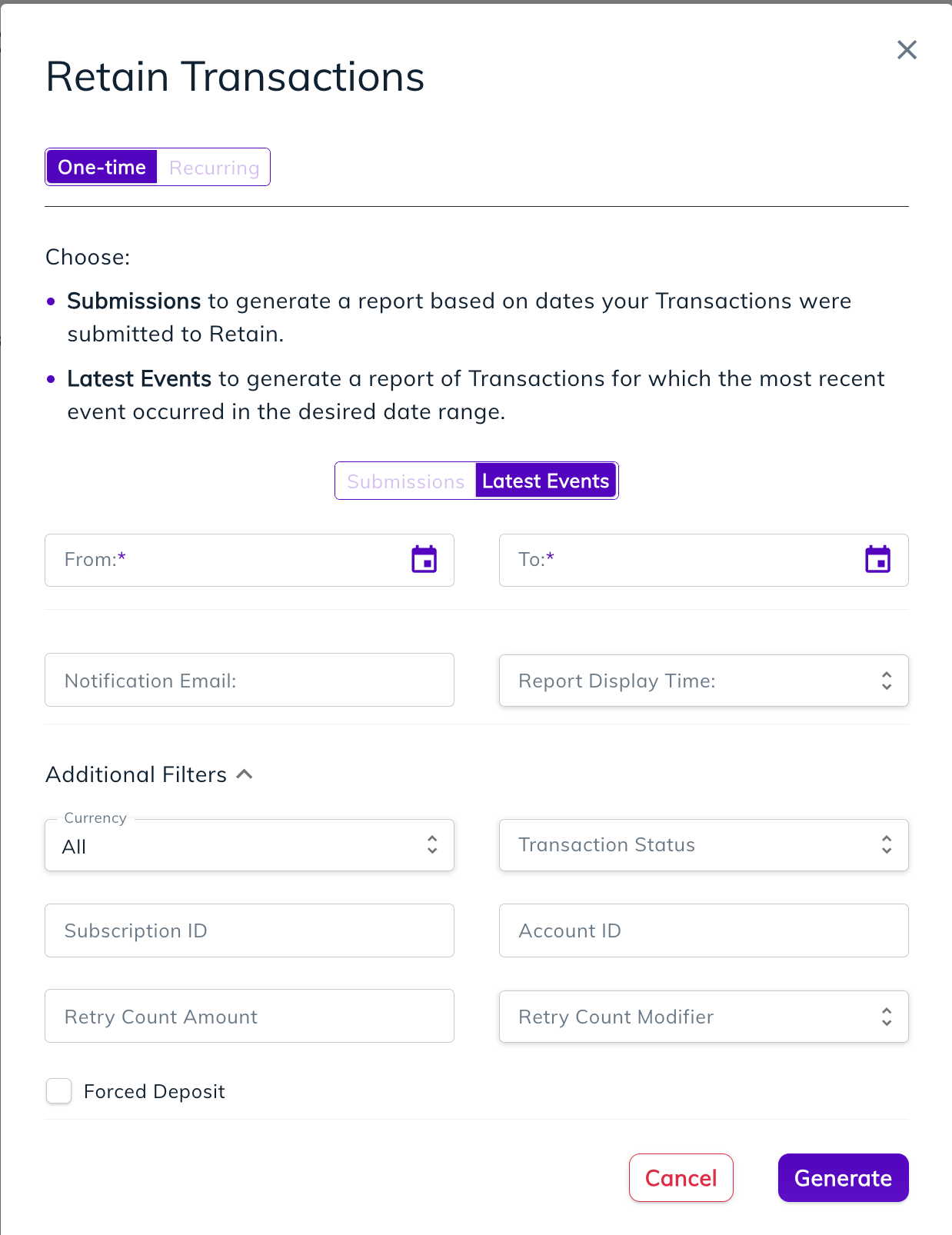 3. Select **One-Time** in the top toggle.
4. Choose whether to generate a Transaction Submissions report or a Latest Events report. This defines which Transactions will be included in the report:
* Submissions: the report lists Transactions submitted to Retain in the defined date range
* Latest Events: the report lists Transactions for which events or activity occurred in the defined date range
5. Enter the desired date range.
6. Optional. Enter an Email address where you'd like to receive notifications when the report is available. A single email address can be entered.
7. Optional. For **Report Display Time**,select the desired timezone to display from the dropdown list.
8. Optional. Expand and select **Additional Filters** for the report:
* **Currency** - Only include Transactions of the specified currency in the report. Only one entry is allowed.
* **Transaction Status** - Only include Transactions in a specific Transaction Status in the report. Only one entry is allowed.
* **Subscription ID** - Only include Transactions belonging to a specific subscription in the report. Only one entry is allowed.
* **Account ID** - Only include Transactions belonging to a specific customer in the report. Only one entry is allowed.
* **Retry Count Amount** - Only include Transactions at the desired retry attempts count (based on count and modifier used) in the report. Only one entry is allowed.
* **Retry Count Modifier** - A modifier to the **Retry Count Amount** filter. Users can select **Less Than**, **More Than**, or **Equals**.
* **Forced Deposit** - Selecting this check box indicates to only include Transactions successfully captured using forced deposit.
9. Click **Generate**.
10. Go to the **My Reports** page to view the reports when available.
### To Generate a Recurring Report
To generate a recurring **Retain Transactions** report, do the following
1. Go to **Analytics** > **Generate Reports**
The Reports list appears.
2. Find the **Retain Transactions** row and click **Generate**.
Retain Transactions panel appears.
3. Select **One-Time** in the top toggle.
4. Choose whether to generate a Transaction Submissions report or a Latest Events report. This defines which Transactions will be included in the report:
* Submissions: the report lists Transactions submitted to Retain in the defined date range
* Latest Events: the report lists Transactions for which events or activity occurred in the defined date range
5. Enter the desired date range.
6. Optional. Enter an Email address where you'd like to receive notifications when the report is available. A single email address can be entered.
7. Optional. For **Report Display Time**,select the desired timezone to display from the dropdown list.
8. Optional. Expand and select **Additional Filters** for the report:
* **Currency** - Only include Transactions of the specified currency in the report. Only one entry is allowed.
* **Transaction Status** - Only include Transactions in a specific Transaction Status in the report. Only one entry is allowed.
* **Subscription ID** - Only include Transactions belonging to a specific subscription in the report. Only one entry is allowed.
* **Account ID** - Only include Transactions belonging to a specific customer in the report. Only one entry is allowed.
* **Retry Count Amount** - Only include Transactions at the desired retry attempts count (based on count and modifier used) in the report. Only one entry is allowed.
* **Retry Count Modifier** - A modifier to the **Retry Count Amount** filter. Users can select **Less Than**, **More Than**, or **Equals**.
* **Forced Deposit** - Selecting this check box indicates to only include Transactions successfully captured using forced deposit.
9. Click **Generate**.
10. Go to the **My Reports** page to view the reports when available.
### To Generate a Recurring Report
To generate a recurring **Retain Transactions** report, do the following
1. Go to **Analytics** > **Generate Reports**
The Reports list appears.
2. Find the **Retain Transactions** row and click **Generate**.
Retain Transactions panel appears.
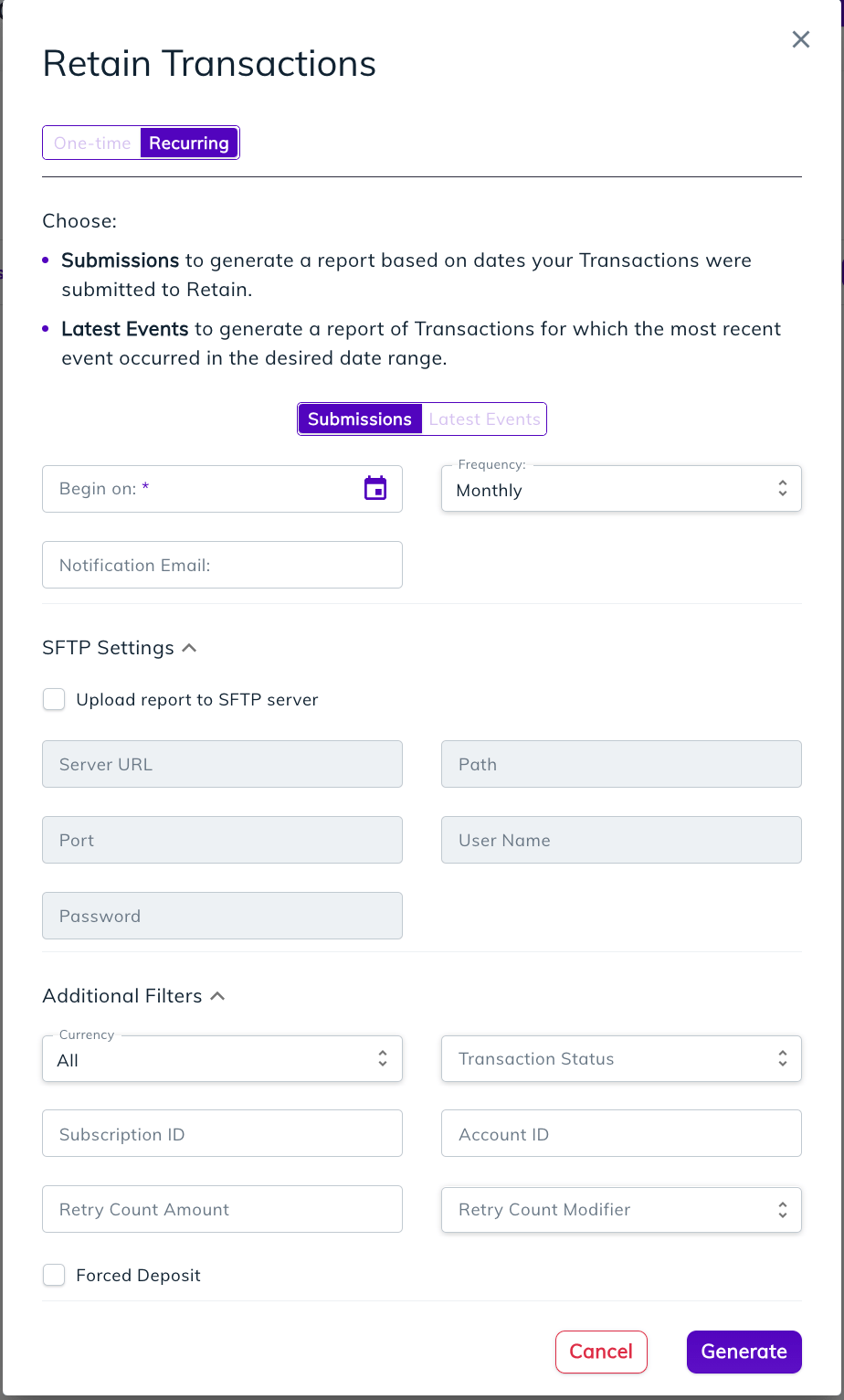 3. Select **Recurring** in the top toggle.
4. Choose whether to generate a Transaction Submissions report or a Latest Events report. This defines which Transactions will be included in the report:
* Submissions: the report lists Transactions submitted to Retain in the defined date range
* Latest Events: the report lists Transactions for which events or activity occurred in the defined date range
5. Select the date for the first reporting period.
6. Optional. Enter an Email address where you'd like to receive notifications when the report is available. A single email address can be entered.
7. Select one of the following frequencies:
* Daily
* Weekly
* Monthly
* Quarterly
8. Optional. If you want to receive the report uploaded to an **SFTP Server**, expand and enable this option and provide the required details. When enabled, a scheduled report will be uploaded to the specified SFTP Server.
9. Optional. Expand and select Additional Filters for the report:
* **Currency** - Only include Transactions of the specified currency in the report. Only one entry is allowed.
* **Transaction Status** - Only include Transactions in a specific Transaction Status in the report. Only one entry is allowed.
* **Subscription ID** - Only include Transactions belonging to a specific subscription in the report. Only one entry is allowed.
* **Account ID** - Only include Transactions belonging to a specific customer in the report. Only one entry is allowed.
* **Retry Count Amount** - Only include Transactions at the desired retry attempts count (based on count and modifier used) in the report. Only one entry is allowed.
* **Retry Count Modifier** - A modifier to the **Retry Count Amount** filter. Users can select **Less Than**, **More Than**, or **Equals**.
* **Forced Deposit** - Selecting this check box indicates to only include Transactions successfully captured using forced deposit.
10. Click **Generate**.
11. Go to the **My Reports** page to view the reports when available.
**Parent topic:**[Retain Transactions Report](../topics/retainTransactionsReport#)
## Retain Transactions Report Output and Display Columns
The report is provided as a CSV file using the following naming format:
```
___.csv
```
For example,
| retain\_transactions\_submission\_once\_06-18-2024 | retain\_transactions\_event\_daily\_06-13-2024 |
| - | - |
| where: | |
* report name - The name of the report. In this case **retain\_transactions**.
* report flavor - indicates how the date range was applied. Either to Transaction **submission** dates or Transactions with activity occcuring (named **event**) during the defined dates.
* report frequency - This defines whether it is a one-time report (appears as **once**) or recurring report (appears as the frequency of the recurring report such as **daily**, **weekly**, or **monthly**).
* date - The date the report was generated appears as MM-DD-YYYY, for example 05-23-2024.
### Retain Transactions Report Display Columns
| Field | Description |
| - | - |
| Merchant | The merchant's name in Retain. |
| Subscription Id | Your unique subscription identifier, which is associated with this Transaction. |
| Merchant Transaction Id | Your unique identifier for the Transaction. |
| Tx Date | The date and time that the Transaction was originally submitted to Retain. |
| Customer Id | Your customer identifier for this Transaction. |
| Retain Transaction Id | ID of the Transaction sent to the payment provider. |
| Latest Event Date | The date of the most recent event (activity) for the Transaction. |
| Status | The Retain Transaction status, which the Transaction is in. Can be one of the following:- Authorized - Cancelled - Captured - Failed - In Retry - Partially Refunded - Refunded - Settled - Stopped - Void |
| Retry Count | The number of times that Vindicia attempted to capture the submitted Transaction. |
| Auth Response Code | The latest response code returned by your payment provider for the associated Transaction. |
| Division Number | Your division, group ID or Merchant ID (MID) for the Transaction as defined with your payment provider. |
| Billing Statement Identifier | A merchant-specified, payment provider-specific identifier that is sent with Transactions. |
| Amount | The Amount of the Transaction. |
| Currency | The Currency or Token type used for the Transaction. |
| Forced Deposit | Indicates that the Transaction associated with this retry attempt was captured by Retain without a prior successful authorization response from the payment provider. |
| Refunded Amount | The funds returned to a customer after successfully capturing a Transaction. |
| Payment Method Id | Your unique identifier for the payment Method used to pay for this Transaction. **Important:** If you used tokenization with your payment provider, it will appear here. |
| Payment Method Tokenized | Provides an indication of whether the payment method is a token (identifier) rather than the actual credit card number. |
| Brand | Brand of the credit card. |
| Account Holder Name | Name of the account holder. |
| Billing Address Line1 | Customer's Billing Address. |
| Billing Address Line2 | Customer's Billing Address. |
| Billing Address Line3 | Customer's Billing Address. |
| Billing Address City | Customer's Billing City. |
| Billing Address County | Customer's Billing County. |
| Billing Address District | Customer's Billing District. |
| Billing Address Country | Customer's Billing Country |
| Billing Address Postal Code | Customer's Billing Postal Code. |
| Affiliate Id | Affiliate from the customer's Subscription, or as specified in the Transaction. |
| Sub Affiliate Id | Sub-Affiliate from the customer's Subscription, or as specified in the Transaction. |
| Payment Processor Transaction Id | The Transaction ID provided by the Payment Provider. |
| Payment Processor Reconciliation Id | The Reconciliation ID provided by the Payment Provider. |
| Name Values | Custom data which can hold different IDs |
| The generated reports can be downloaded from the [My Reports](reportsMyReports) page when ready. | |
**Parent topic:**[Retain Transactions Report](../topics/retainTransactionsReport#)
This documentation is built and hosted on [Mintlify](https://mintlify.com), a developer documentation platform.
3. Select **Recurring** in the top toggle.
4. Choose whether to generate a Transaction Submissions report or a Latest Events report. This defines which Transactions will be included in the report:
* Submissions: the report lists Transactions submitted to Retain in the defined date range
* Latest Events: the report lists Transactions for which events or activity occurred in the defined date range
5. Select the date for the first reporting period.
6. Optional. Enter an Email address where you'd like to receive notifications when the report is available. A single email address can be entered.
7. Select one of the following frequencies:
* Daily
* Weekly
* Monthly
* Quarterly
8. Optional. If you want to receive the report uploaded to an **SFTP Server**, expand and enable this option and provide the required details. When enabled, a scheduled report will be uploaded to the specified SFTP Server.
9. Optional. Expand and select Additional Filters for the report:
* **Currency** - Only include Transactions of the specified currency in the report. Only one entry is allowed.
* **Transaction Status** - Only include Transactions in a specific Transaction Status in the report. Only one entry is allowed.
* **Subscription ID** - Only include Transactions belonging to a specific subscription in the report. Only one entry is allowed.
* **Account ID** - Only include Transactions belonging to a specific customer in the report. Only one entry is allowed.
* **Retry Count Amount** - Only include Transactions at the desired retry attempts count (based on count and modifier used) in the report. Only one entry is allowed.
* **Retry Count Modifier** - A modifier to the **Retry Count Amount** filter. Users can select **Less Than**, **More Than**, or **Equals**.
* **Forced Deposit** - Selecting this check box indicates to only include Transactions successfully captured using forced deposit.
10. Click **Generate**.
11. Go to the **My Reports** page to view the reports when available.
**Parent topic:**[Retain Transactions Report](../topics/retainTransactionsReport#)
## Retain Transactions Report Output and Display Columns
The report is provided as a CSV file using the following naming format:
```
___.csv
```
For example,
| retain\_transactions\_submission\_once\_06-18-2024 | retain\_transactions\_event\_daily\_06-13-2024 |
| - | - |
| where: | |
* report name - The name of the report. In this case **retain\_transactions**.
* report flavor - indicates how the date range was applied. Either to Transaction **submission** dates or Transactions with activity occcuring (named **event**) during the defined dates.
* report frequency - This defines whether it is a one-time report (appears as **once**) or recurring report (appears as the frequency of the recurring report such as **daily**, **weekly**, or **monthly**).
* date - The date the report was generated appears as MM-DD-YYYY, for example 05-23-2024.
### Retain Transactions Report Display Columns
| Field | Description |
| - | - |
| Merchant | The merchant's name in Retain. |
| Subscription Id | Your unique subscription identifier, which is associated with this Transaction. |
| Merchant Transaction Id | Your unique identifier for the Transaction. |
| Tx Date | The date and time that the Transaction was originally submitted to Retain. |
| Customer Id | Your customer identifier for this Transaction. |
| Retain Transaction Id | ID of the Transaction sent to the payment provider. |
| Latest Event Date | The date of the most recent event (activity) for the Transaction. |
| Status | The Retain Transaction status, which the Transaction is in. Can be one of the following:- Authorized - Cancelled - Captured - Failed - In Retry - Partially Refunded - Refunded - Settled - Stopped - Void |
| Retry Count | The number of times that Vindicia attempted to capture the submitted Transaction. |
| Auth Response Code | The latest response code returned by your payment provider for the associated Transaction. |
| Division Number | Your division, group ID or Merchant ID (MID) for the Transaction as defined with your payment provider. |
| Billing Statement Identifier | A merchant-specified, payment provider-specific identifier that is sent with Transactions. |
| Amount | The Amount of the Transaction. |
| Currency | The Currency or Token type used for the Transaction. |
| Forced Deposit | Indicates that the Transaction associated with this retry attempt was captured by Retain without a prior successful authorization response from the payment provider. |
| Refunded Amount | The funds returned to a customer after successfully capturing a Transaction. |
| Payment Method Id | Your unique identifier for the payment Method used to pay for this Transaction. **Important:** If you used tokenization with your payment provider, it will appear here. |
| Payment Method Tokenized | Provides an indication of whether the payment method is a token (identifier) rather than the actual credit card number. |
| Brand | Brand of the credit card. |
| Account Holder Name | Name of the account holder. |
| Billing Address Line1 | Customer's Billing Address. |
| Billing Address Line2 | Customer's Billing Address. |
| Billing Address Line3 | Customer's Billing Address. |
| Billing Address City | Customer's Billing City. |
| Billing Address County | Customer's Billing County. |
| Billing Address District | Customer's Billing District. |
| Billing Address Country | Customer's Billing Country |
| Billing Address Postal Code | Customer's Billing Postal Code. |
| Affiliate Id | Affiliate from the customer's Subscription, or as specified in the Transaction. |
| Sub Affiliate Id | Sub-Affiliate from the customer's Subscription, or as specified in the Transaction. |
| Payment Processor Transaction Id | The Transaction ID provided by the Payment Provider. |
| Payment Processor Reconciliation Id | The Reconciliation ID provided by the Payment Provider. |
| Name Values | Custom data which can hold different IDs |
| The generated reports can be downloaded from the [My Reports](reportsMyReports) page when ready. | |
**Parent topic:**[Retain Transactions Report](../topics/retainTransactionsReport#)
This documentation is built and hosted on [Mintlify](https://mintlify.com), a developer documentation platform.