> ## Documentation Index
> Fetch the complete documentation index at: https://docs.vindicia.com/llms.txt
> Use this file to discover all available pages before exploring further.
# Retain Financial Reports
Retain merchants are invoiced monthly. In addition, financial reports are also provided monthly to help merchants understand the charges, view supporting data, and reconcile the invoice.
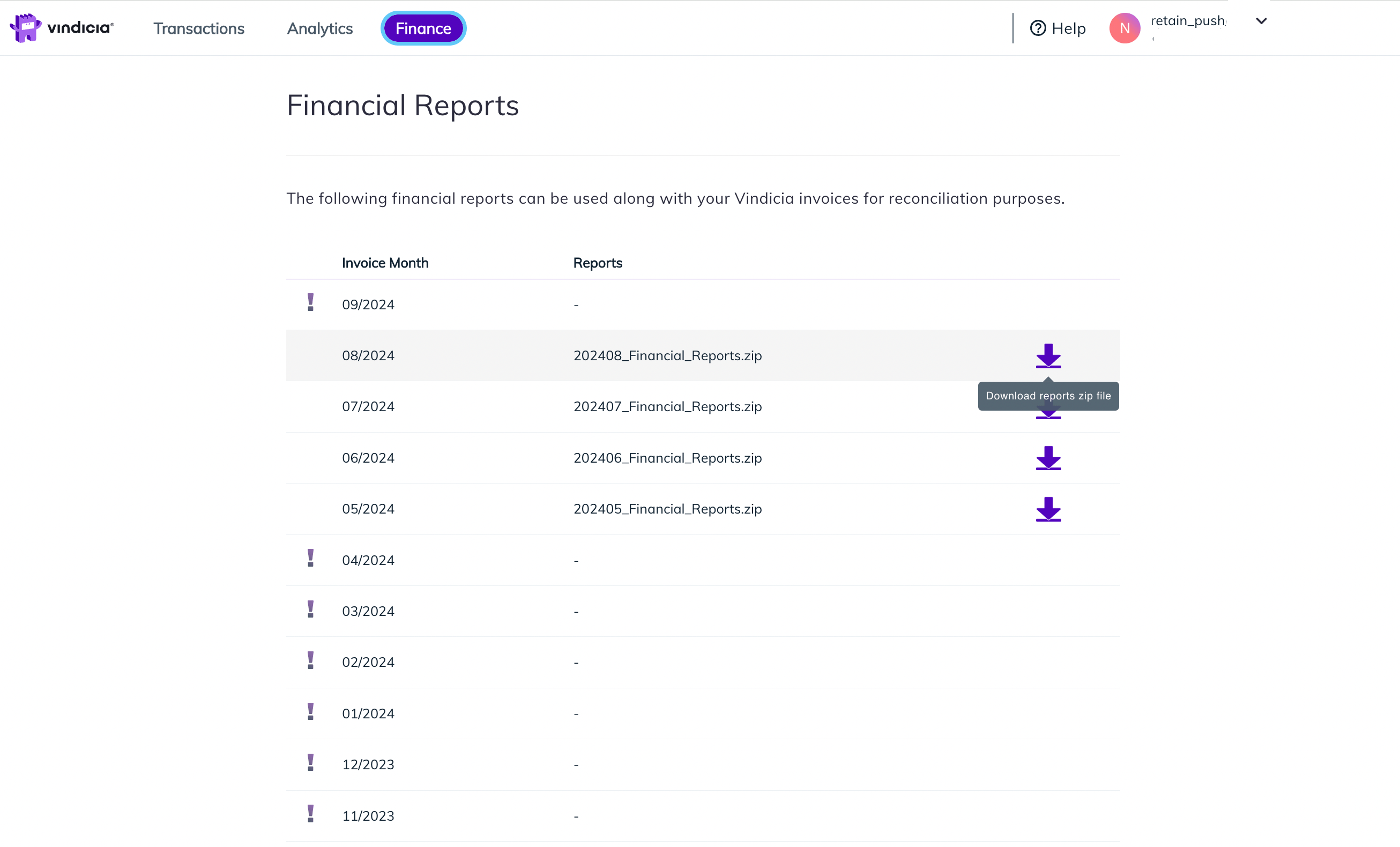
In Retain Hub, Retain Super Users have access to the **Finance** tab. The Finance tab displays the monthly supporting financial reports (starting from September 2024 onwards) and allows you to download them as a single zipped folder holding several CSV report files.
Previous month reports are available from the 4th day of the following month for download. For example, September reports are available by October 4th.
The financial reports are available for download from the Finance tab for a 12-month period.
 * **[Download Retain Monthly Financial Reports](../topics/retainFinanceReports#)**
## Download Retain Monthly Financial Reports
The Finance tab in Retain Hub displays the monthly supporting financial reports and allows Retain Super Users to download them as a single zipped folder holding several CSV report files.
Previous month reports are available from the 4th day of the following month for download.
**To download the monthly financial reports, do the following:**
1. [Log in to the Vindicia Hub](portalAccessingVindiciaIDP) as a Retain Super User at [https://portal.vindicia.com/portal/login](https://portal.vindicia.com/portal/login).
The Retain Hub login page appears.
2. From the top menu, click the **Finance** tab.
The Financial Reports page appears listing the available months.
3. Locate the month you wish to download and click the Download icon
* **[Download Retain Monthly Financial Reports](../topics/retainFinanceReports#)**
## Download Retain Monthly Financial Reports
The Finance tab in Retain Hub displays the monthly supporting financial reports and allows Retain Super Users to download them as a single zipped folder holding several CSV report files.
Previous month reports are available from the 4th day of the following month for download.
**To download the monthly financial reports, do the following:**
1. [Log in to the Vindicia Hub](portalAccessingVindiciaIDP) as a Retain Super User at [https://portal.vindicia.com/portal/login](https://portal.vindicia.com/portal/login).
The Retain Hub login page appears.
2. From the top menu, click the **Finance** tab.
The Financial Reports page appears listing the available months.
3. Locate the month you wish to download and click the Download icon  .
A confirmation message appears and the zipped monthly reports folder is saved to your local computer.
Its naming follows the format of **YYYYMM\_Financial\_Reports.zip**. For example, August 2024 appears as 202408\_Financial\_Reports.zip.
4. Unzip the folder and save locally.
The relevant monthly financial reports are available as CSV files and can be viewed in any spreadsheet application.
**Parent topic:**[Retain Financial Reports](../topics/retainFinanceReports#)
This documentation is built and hosted on [Mintlify](https://mintlify.com), a developer documentation platform.
.
A confirmation message appears and the zipped monthly reports folder is saved to your local computer.
Its naming follows the format of **YYYYMM\_Financial\_Reports.zip**. For example, August 2024 appears as 202408\_Financial\_Reports.zip.
4. Unzip the folder and save locally.
The relevant monthly financial reports are available as CSV files and can be viewed in any spreadsheet application.
**Parent topic:**[Retain Financial Reports](../topics/retainFinanceReports#)
This documentation is built and hosted on [Mintlify](https://mintlify.com), a developer documentation platform.