> ## Documentation Index
> Fetch the complete documentation index at: https://docs.vindicia.com/llms.txt
> Use this file to discover all available pages before exploring further.
# My Reports
The My Reports page allows you to:
* Download the CSV and view the report
* Delete one-time reports
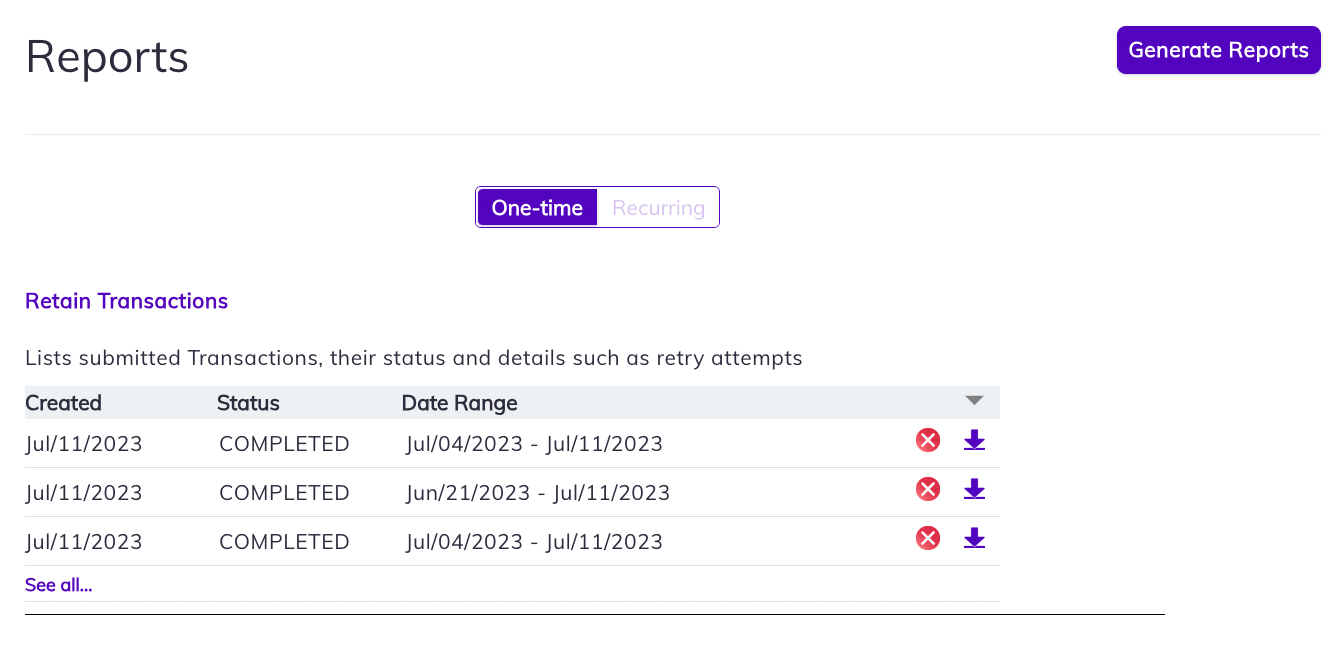
Select **One Time** or **Recurring** to see all the available reports.
## One Time Reports
One time reports are listed by date created, date range of the report, and its status. Click the **X** to delete the report, click the download  icon to download it when its status becomes **Completed**.
 ## Recurring Reports
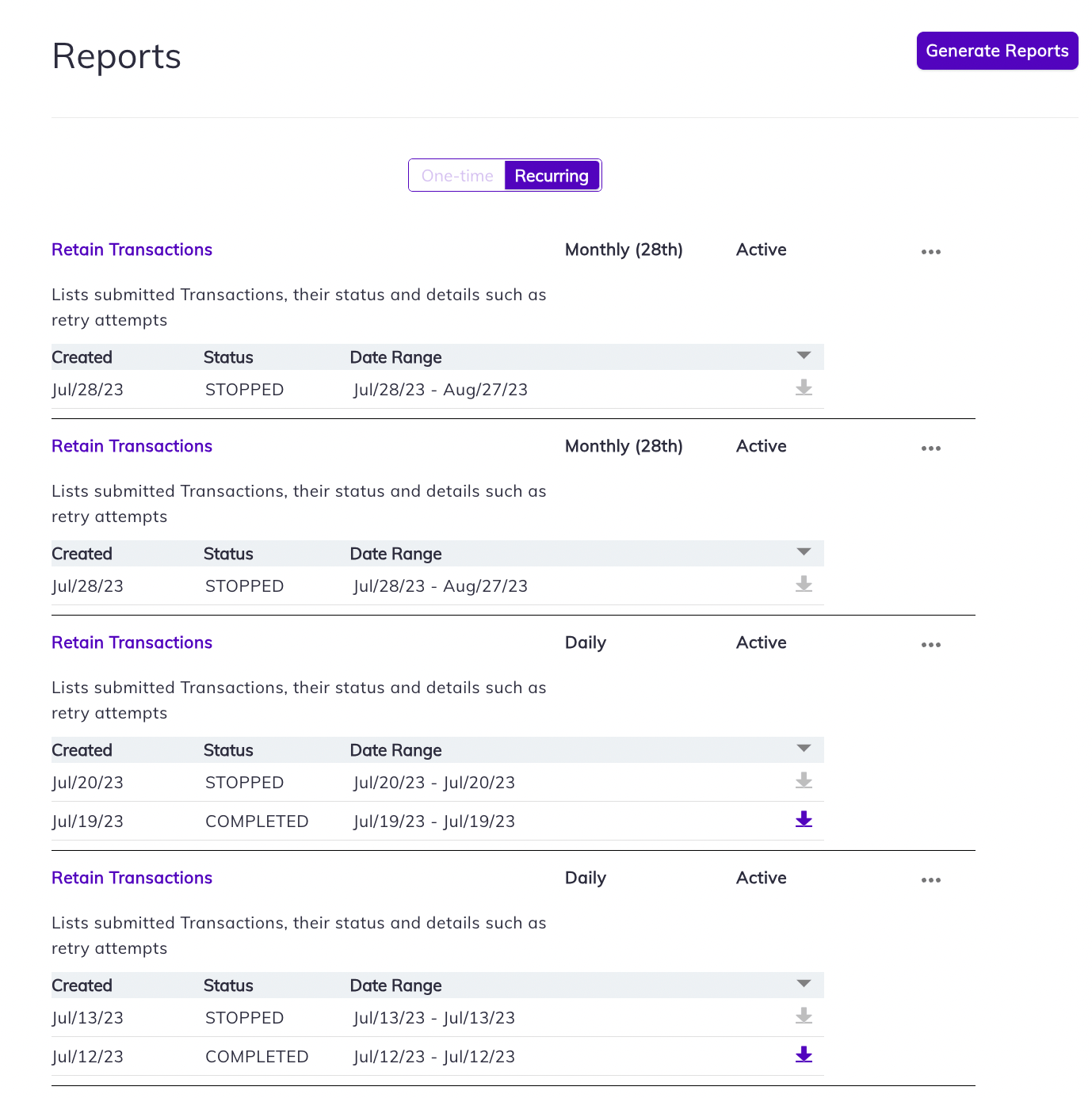
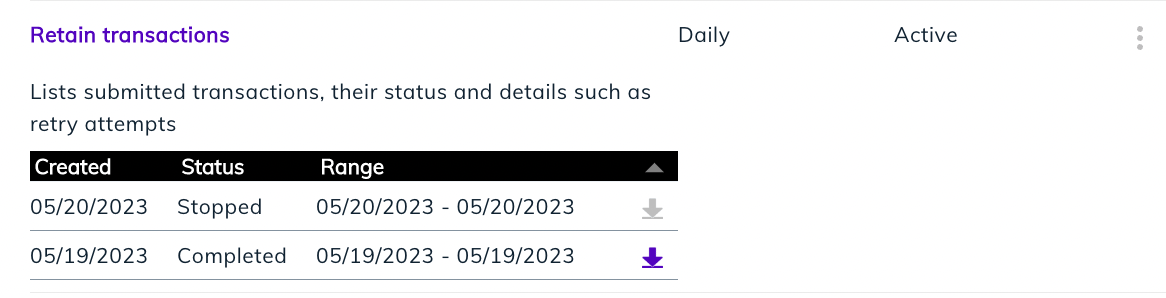
Recurring reports are scheduled reports and appear separately for different frequencies, such as monthly and daily.
To download the report, click the download icon. The report downloads as a CSV file.
From the More Options (3 dotted) menu, you can select:
* **Stop Schedule**—allows you to stop creating new reports as based on the schedule. This action cannot be undone.
* **Delete Schedule**—allows you to stop creating new reports and deletes available reports. This action cannot be undone.
* **Modify Email Address**—Enter the alternate email to which you'd like to receive notifications. Click **Update**.
* **Modify SFTP Connection**— Enter alternate SFTP settings and click **Update**.
## Recurring Reports
Recurring reports are scheduled reports and appear separately for different frequencies, such as monthly and daily.
To download the report, click the download icon. The report downloads as a CSV file.
From the More Options (3 dotted) menu, you can select:
* **Stop Schedule**—allows you to stop creating new reports as based on the schedule. This action cannot be undone.
* **Delete Schedule**—allows you to stop creating new reports and deletes available reports. This action cannot be undone.
* **Modify Email Address**—Enter the alternate email to which you'd like to receive notifications. Click **Update**.
* **Modify SFTP Connection**— Enter alternate SFTP settings and click **Update**.
 ## Email Notifications for System-Generated Recurring Reports
When a system-generated report is ready to download, an email notification is sent from [support@vindicia.com](mailto:support@vindicia.com) to the email address associated with the notification email..
**Parent topic:**[SubscribeRetain Reports](../topics/reportsAbout)
This documentation is built and hosted on [Mintlify](https://mintlify.com), a developer documentation platform.
## Email Notifications for System-Generated Recurring Reports
When a system-generated report is ready to download, an email notification is sent from [support@vindicia.com](mailto:support@vindicia.com) to the email address associated with the notification email..
**Parent topic:**[SubscribeRetain Reports](../topics/reportsAbout)
This documentation is built and hosted on [Mintlify](https://mintlify.com), a developer documentation platform.